Overview
At Pepperdine, you can print from a web browser or directly from your computer and
then wait to pick up your job at the network printer that provides the most convenient
location and time for you.
How to Print and Scan
Sharp Public Printer Locations
| Location |
Color/Black & White Printer |
| Malibu Campus: ACE, Payson Library 315 |
Yes |
| Malibu Campus: Café Fresca, CCB 200 |
Yes |
| Malibu Campus: Lobby Area, Payson Library 208 |
Yes |
| Calabasas Campus: Library, CAL 103 |
Yes |
| Calabasas Campus: Student Lounge, CAL 114B |
Yes |
| Drescher Campus: Library, DLC 210 |
Yes |
| West LA Campus: Library, WLA 107 |
Yes |
| Irvine Campus: Library, IRV 220 |
Yes |
FAQ
Will I be able to print from public computers in a library or computer lab?
Yes, public Pepperdine computers will all be able to print to FindMeBW and FindMeColor.
Because they are public, a pop-up client will appear asking you to enter your Pepperdine
credentials each time you print.
Can I really print from anywhere?
Yes, print.pepperdine.edu is accessible when connected to the Pepperdine network.
How much does it cost to print per page?
The cost is 6¢ a side for black and white and 35¢ a side for color.
How long will my document sit in the printer's release station?
Documents will sit in the release station for 24 hours from the time it is sent from
your computer. After 24 hours the document will be deleted.
Can a deleted document be recovered?
No. Computer lab staff are not responsible for deleted documents and are not able
to retrieve deleted documents.
How do I add money to my Pepperdine ID
How do I retrieve a print job that I've sent to FindMeBW or FindMeColor?
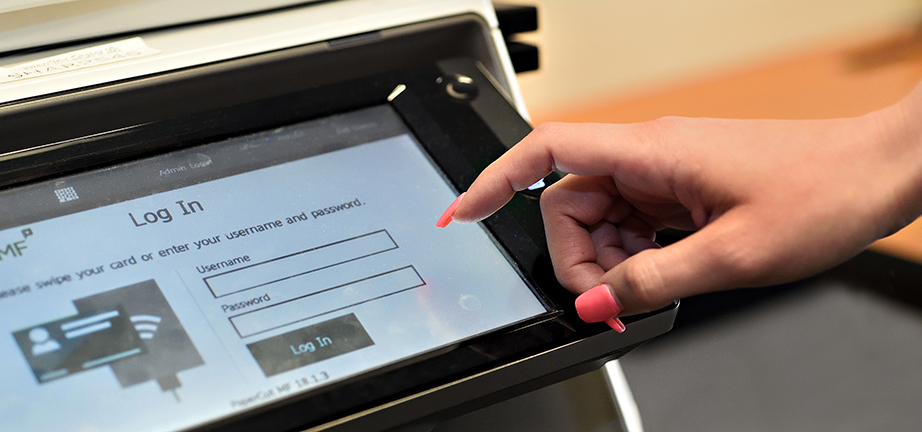
Go to any Sharp copier and log into your account by tapping your Pepperdine ID card
or by entering your Pepperdine credentials using the touch screen or physical keyboard.
Select the job(s) to release and retrieve your document from the print tray.
If my account is out of funds, can a staff member release a job for me?
No. The print queue is linked directly to your Pepperdine account and ID card. Staff
members are not liable for, or have access to, a print job created by a student.
Can I get my money back if my print job did not come out properly?
Pepperdine only refunds students if they have a lost print job and the printer failed
to print the pages. Only print jobs meeting the minimum $5 requirement are eligible
for a refund by submitting a technology service request form.
Can I use my personal wireless printer in the student residences at Pepperdine?
Unfortunately, wireless printers are prohibited on all campuses and student residences
due to their interference with the Pepperdine wireless signal. When discovered, these
devices will be prevented from printing wirelessly. However, you can connect your
printer’s cable directly to your computer.
How do I change the size of the paper from letter to legal?
When printing from print.pepperdine.edu, select a printer with "LEGAL" in its name to print legal-sized documents.