Helpful ALTernatives
Learn how to add alternative (ALT) text descriptions to your visuals to reach every reader.
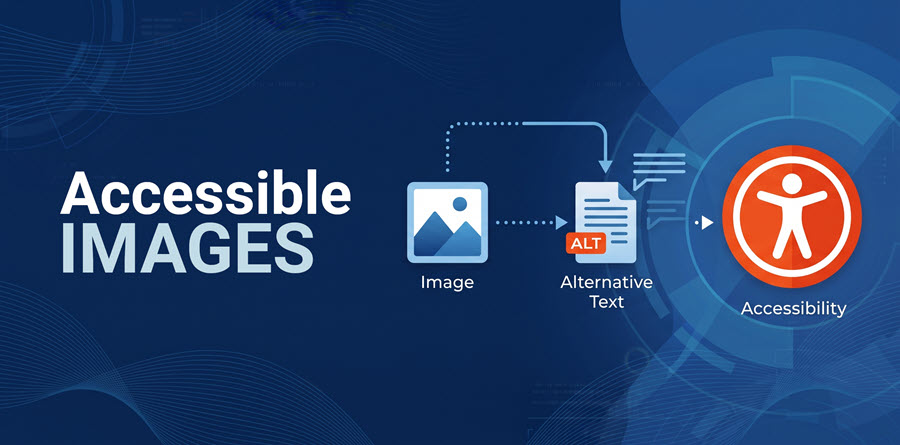
Welcome to this month's Digital Accessibility topic, the "A" of HEAL: Alternative Text. Our November post is a collaboration with the Office of Student Accessibility. We hope you enjoy Part 3 of 4 in the HEAL Framework blog series.
Quick Summary
- Consider the purpose of visual (non-textual) content in digital materials—is it meant to decorate or communicate?
- Add alternative text descriptions to images that concisely describe the point of the content. (The why is often more important than the what.)
- Mark purely decorative images as such.
- Avoid placing important text in images; place key text directly on the page.
- Filenames are not acceptable alt descriptions.
Who Should Read This Article
- All faculty.
- All employees who create email messages, documents, webpages, etc.
The Power of Alternative Text
Have you ever tried to visit a webpage, open an email, or download content over a sketchy Wi-Fi connection? We’ve all been there—waiting for the content to load, seeing the loading bar progress, finally seeing the words appear—only for the graphic, photo, or diagram we were waiting for to show up as a broken image (pictured below).

Or imagine navigating a webpage using a screen reader, arriving at the graphic, and hearing the software read “Image” and nothing else. It is true what they say: "A picture is worth a thousand words." A picture can also be a challenge to load if it's a high-resolution photograph or illustration. Pictures can also be difficult to process by screen readers without your assistance. Our images often convey important information or context to our readers, so being unable to access or understand the non-textual content is detrimental to their understanding, learning, and experience with our material.
The fix is easy: Add alt text to your images, charts, and other visuals.
Who Benefits from Alt Text?
- Diverse Communities: We can reach more people, especially anyone who uses assistive technologies, by adding alt text to our visuals.
- Users with Slow Internet: Anyone with weak internet connections will still be able to read the alt text if a visual fails to load.
- You! Adding alternative text to images encourages critical thought about the purpose and message of your non-textual content.
Best Practices for Alt Text
When you write alternative text, please consider the following best practices.
 Prioritize Context Over Content
Reflect on why you included the image. What is the lesson you wanted to communicate or enhance? A photo by Ansel Adams of El Capitan in Yosemite would have a vastly different purpose in a photography class than a lecture on national parks in a US History class. Therefore, alternative text is rarely a one-description-fits-all process. Focus on the concept, takeaway, and reason for the visual, and describe the content in that context.
Keep Alt Text Brief and Descriptive
Limit your description to one or two sentences (try for 120-150 characters max). Get to the point quickly and let your surrounding prose or figure caption communicate deeper meaning or connections. Drop any meaningless openings like "Image of..." or "Picture of..." Screen readers will introduce the visual as an image.
Mark Purely Decorative Visuals as Decorative
If a graphic has been added for purely aesthetic reasons (page borders, abstract backgrounds, or fun clip art), mark the visual as decorative. Applications like Microsoft Word and Google Docs, as well as learning tools like Canvas LMS, offer image options to "Mark as decorative." On a webpage, leave a null alt attribute (i.e., alt=""). This way, assistive technologies will skip over the image.
Explain the Action for an Image with a Link
When an image includes a link, such as a registration button or an email banner graphic, explain what happens when someone follows the link, not just the content of the visual. For example, if the image provides access to a feature, such as a search button, describe the function (search) and don't worry about the graphic (magnifying glass icon). If a link is on a banner graphic, describe the graphic and explain where the link will take the user.
Double-Check any AI-Generated Alt Text
If a tool offers to automatically generate alt text using artificial intelligence (AI), always verify AI output and update the description to reflect the visual's context and function if needed.
 Don't Place Critical Text in an Image
Except for charts or graphs, don't place critical text information in an image. Key details, such as dates, times, and locations, should be placed within searchable text on the page or in the body of the document. If using a primary historical source, however, that contains significant text, transcribe the text in your alt text, adjacent body copy, or in an appendix.
Filenames Are Not Descriptions
A filename, like "image.jpg" or "banner-graphic.png," is not an acceptable alternative text description. While you should always use meaningful filenames to help you find and select graphic files on your computer, devices, or websites, don't rely on the filename to explain the visual.
Alt Description Examples
The following table provides samples of effective and ineffective alt text for common visual categories.
| Category of Visual | Effective Alt Text | Poor Alt Text |
|---|---|---|
| Historical Photograph | Black-and-white photograph of civil rights demonstrators marching across the Edmund Pettus Bridge in Selma, Alabama, in 1965. | Picture of protesters walking with signs. |
| Bar Chart | Bar chart comparing U.S. unemployment rates from 2019 to 2024, showing a spike to 14.8% in April 2020 followed by a steady decline to under 4% by 2024. | Chart of unemployment rates. |
| Decorative Graphic | [Mark it as decorative or set alt=""] | blue-wavy-lines.jpg |
How to Add Alternative Text
Want to learn how to add alternative or alt text descriptions to visuals on popular platforms? Please select a tool below to expand and find instructions.
Additional Resources
- HEAL Blog 1 of 4: Headings
- HEAL Blog 2 of 4: Explanatory Links
- HEAL Framework
- ACCESS Checklist
- Faculty Resources for Digital Accessibility
Thank you for supporting all members of our Pepperdine community by adopting digital accessibility best practices!
CREDITS: The banner image, Google Chrome broken image figure, and example ALT text descriptions in the data table were created with assistance from Google Gemini.