Course Schedule Builder
Overview
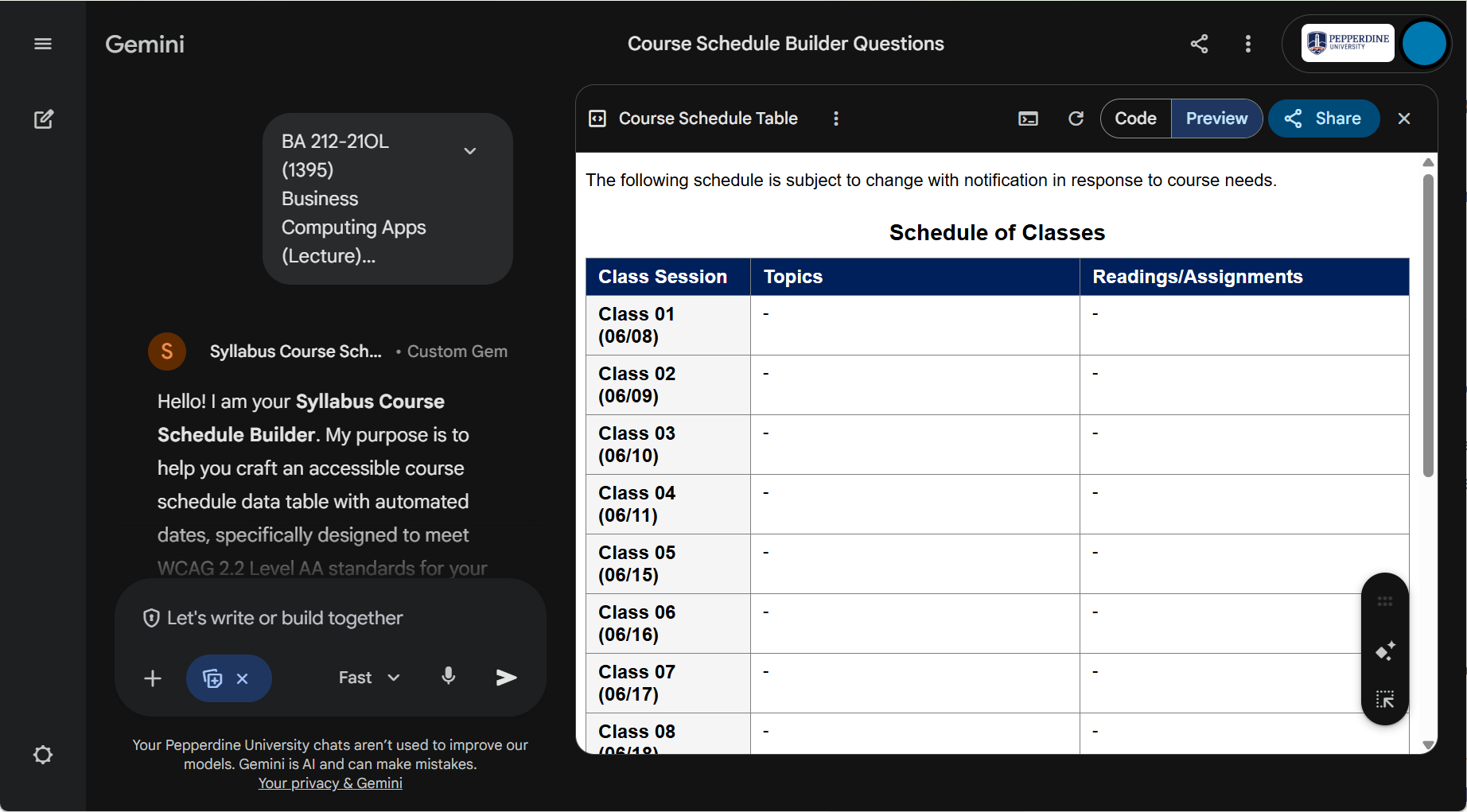
Each term, professors must produce a course schedule with updated dates. The schedule needs to factor in University holidays and possibly a unique final exam date. Finally, we must produce a digitally accessible data table with Pepperdine brand colors.
Introducing our Pepperdine Syllabus Schedule Builder. This Google Gem will take the basic details of your class and provide the HTML code to copy/paste into Pepperdine Syllabus.
Instructions
Gather Your Class Details
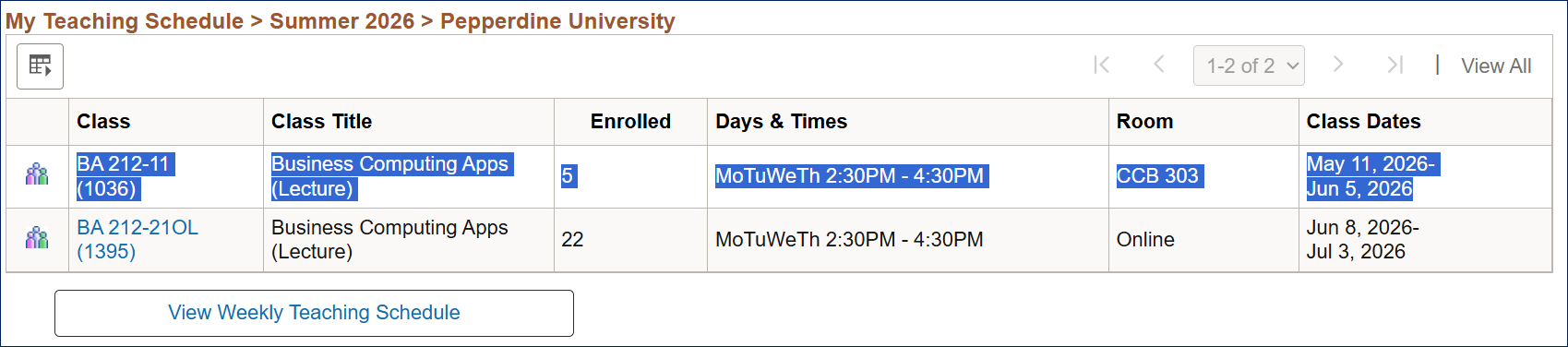
- Log in to WaveNet.
- Visit the Faculty Center.
- Select the correct academic term.
- Select the course details for the intended syllabus.
- Copy the information.
Use the Pepperdine Syllabus Schedule Builder Google Gem
- Log in to your Pepperdine Google account, e.g., email.pepperdine.edu. (Access is limited to Pepperdine University accounts only.)
- Visit Pepperdine Syllabus Schedule Builder or use the "Build My Schedule" button above.
- Interact with the gem. You can be as brief or verbose as you prefer.
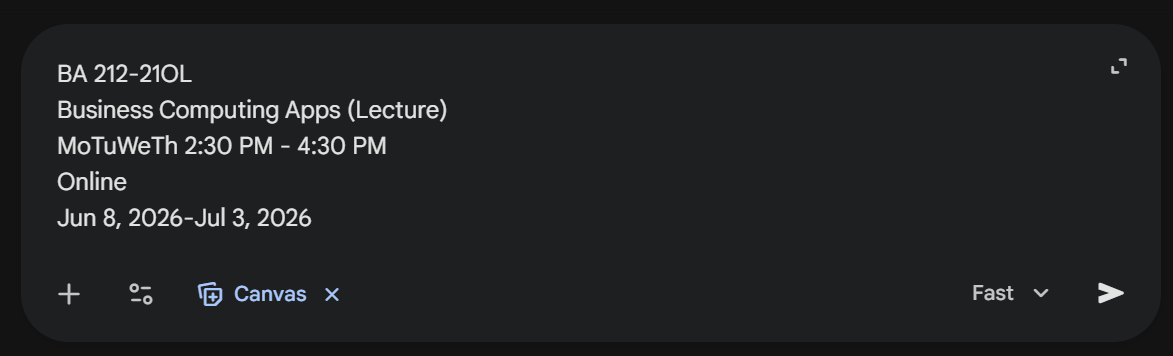
- Fastest: Copy Course Details from WaveNet
- Paste your course details from WaveNet into the Pepperdine Syllabus Schedule Builder
gem.
- Answer any follow-up questions.
- Paste your course details from WaveNet into the Pepperdine Syllabus Schedule Builder
gem.
- Step-by-Step Guided Process.
- Say "Hi" or anything to start the conversation.
- Answer each question, writing in all of your course details manually.
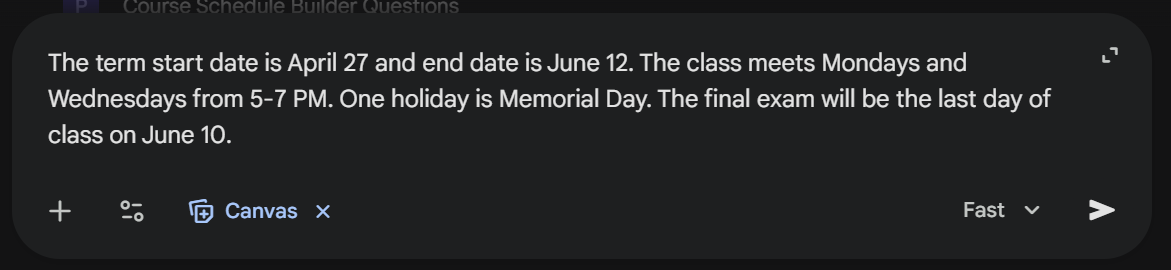
- If prompted, answer any follow-up questions to improve the gem's interpretation.
- Fastest: Copy Course Details from WaveNet
- Wait for the gem to process and build your schedule.
- Preview the results (toggle between the Code and Preview options).
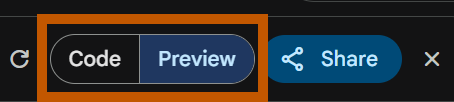
- Use the chat dialogue to request any adjustments.
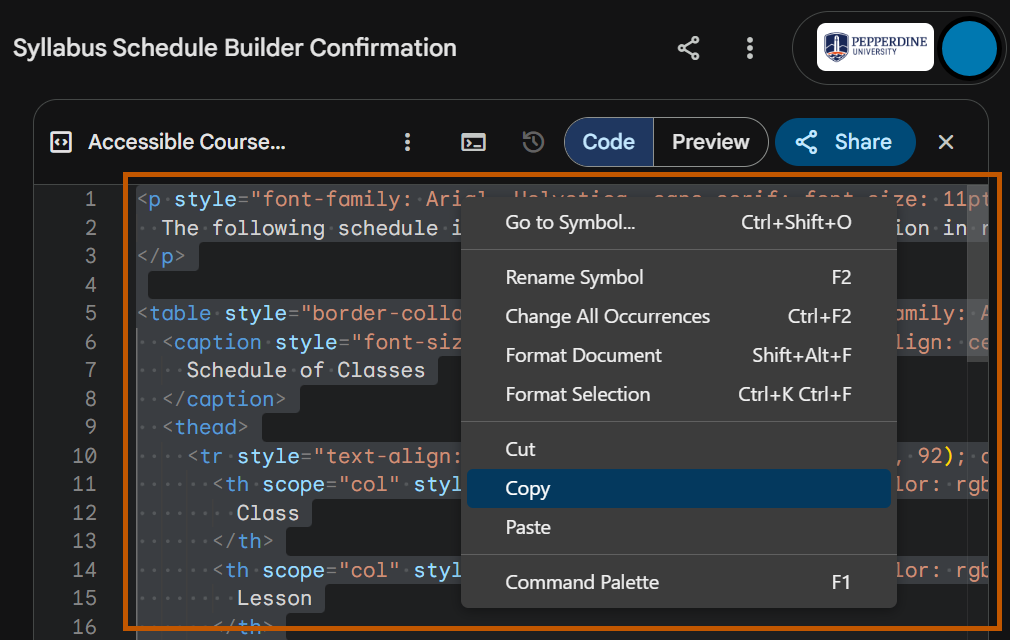
- Select the "Code" toggle.
- Select the code and Copy (Control-C on PC or Command-C on Mac) the HTML snippet.
Add the Schedule Code to Pepperdine Syllabus
- Visit your online class syllabus in Pepperdine Canvas or Pepperdine Syllabus.
- Edit the specific syllabus.
- Locate the lesson plan or course schedule section of the syllabus.
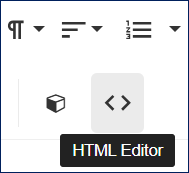
- Select the HTML editor icon (the "<>" button) in the rich text editor to view the source code.
- Select all of the existing content, and press "Delete" or "Backspace" to remove the default table code.
- Paste the schedule code from the gem into the box.
- Press the HTML editor icon again (the "<>" button) to return to the Rich Text editor.
- Use the editor to edit your new table, adding the details for each day or activity.
- Pepperdine Syllabus auto-saves your work as you interact with it.
- Use the Submit button at the bottom when you are ready to publish your syllabus.
See Also
← Back to Pepperdine Syllabus Faculty Guide