Pepperdine | Community

Student Quick Reference Guides

Overview

Criminals employ malware programmers to trick, extort, and steal from you. Protect your computer, and it will protect your identity. To help, the Information Security Office created a series of quick reference guides on security topics.
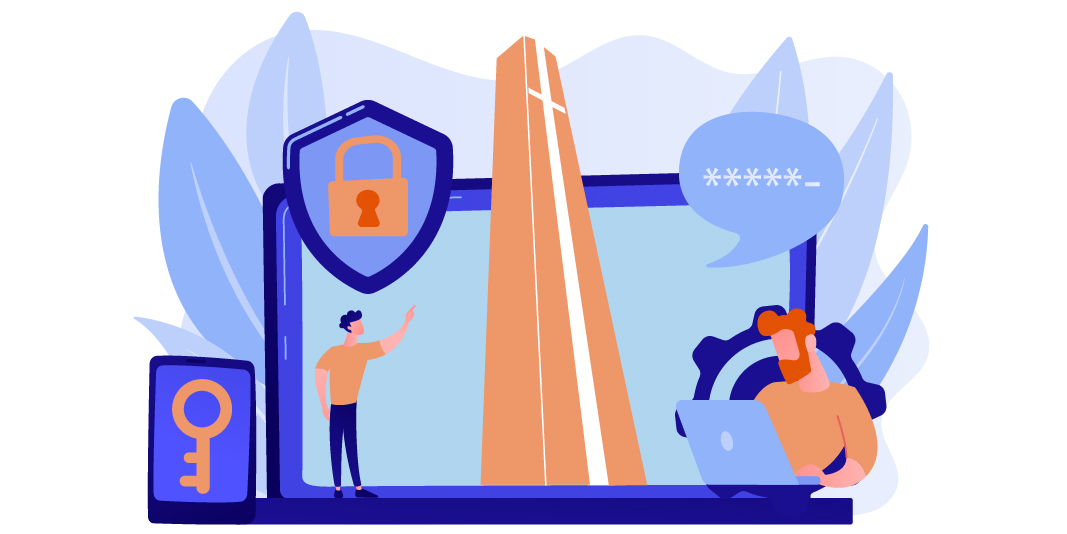
 

Conceptual illustration of a classroom atmosphere with security markers around Pepperdine University's Phillips Theme Tower.

Priorities for Securing Your Computer

Any security strategy will only be as strong as the person employing it. Here are some basic tips to keep in mind everywhere and always:

  1. Think before you click a link or open a file
  2. Update web browsers and plug-ins
  3. Update your operating system and key software
  4. Keep your firewall set to ON
  5. Set a password and screensaver timeout
  6. Back up your data regularly
  7. Use the guest account if loaning your computer to friends

Illegal File Sharing

Don’t share or download copyrighted media without authorization. Learn more about illegal file sharing.

Reporting Incidents

Lost or Stolen Computer or Device?

Report a lost or stolen computer or device to the Department of Public Safety at 310.506.4442.

Suspected Information Security Breach?

Report the suspected loss of your Social Security, Credit Card, or Health Care records to the Information Security Office (ISO) at 310.506.4040 or 310.506.4357.


How to Keep Your Computer Safe

No matter what type of device you use, we have some tips on how to leverage cybersecurity for your specific needs.

Apple macOS

  Update Everything*

Beware the “drive-by” downloads. Many campus computers, including Macs, get infected without any user action from a single visit to a legitimate website that displays ads from an exploited ad service. Exploits designed to hijack your computer work by using vulnerabilities in browser plug-in software. Updates stop attacks that antivirus software cannot stop.

  Set a password and a locking screensaver*

Are you logged into WaveNet? If so, anyone who sits at your computer is logged in as you, too. A locked screen is protection against pranks, prying eyes, and even theft. In System Preferences, select these icons:

  • Security > (General Tab):
    • Require password for sleep or screensaver (use the five-second delay to prevent accidental locks)
    • Disable automatic login
  • Desktop & Screen Saver > (Screen Saver Tab):
    • Slider: start after 15 minutes
    • Hot corner button: set corners to start and disable
  Backup – What are you prepared to lose?*

If your computer is stolen or your hard drive crashes, will you lose your academic work, music, and email? Not if you have a backup that you use regularly!

  • Copy academic and personal files to Google Drive
  • Copy work files to your departmental file share (Pepperdine faculty and staff)
  • Consider purchasing a cheap USB hard drive to use with Time Machine. It’s super easy to back up and restore with Time Machine!

*For help setting up these security features, call the Help Desk 

  Be wary, and do not trust every email

Don’t get phished! It could end up filling your email inbox with trash, or cost you a paycheck or financial aid payment! Pepperdine will never ask you to "confirm" your account!

Do this with all unexpected email requests (phishing.pepperdine.edu for more info):

  • Delete suspicious requests, confirm "real" requests with the sender by phone or web
  • Check the web address (URL) every time you enter your password
  • Pepperdine University websites that ask for your information have valid security certificates and URLs like this example: https://hostname.pepperdine.edu.
  Free Macintosh Antivirus

2012 became the year in which Macintosh malware broke out, thanks to Apple waiting six months to patch Java. Sophos offers free antivirus for your personally-owned computer, and Avast offers free antivirus, too.

  Use a Guest Account to loan to friends

If someone needs to borrow your computer for a short time, don’t give him or her full access to your files, email, saved website passwords, etc. Log out and let them log in with the guest account – they will be prevented from accessing your documents.

To turn on the guest account, go to System Preferences and click the Accounts Icon:

  • Select the Guest Account
  • Select checkbox: Allow guests to log in to this computer
  Use a non-Admin account for daily use

When you first set up your Mac, you make an account. Since there has to be an account with administrator powers to install software and updates, this first account has admin rights. You can make your computer more secure by using a non-admin account for daily use.

  • Create a new admin account & log into it
  • Remove the admin privilege from your daily account

*For help setting up these security features, call the Help Desk

Windows

  Update Everything*

Exploits designed to hijack your computer work by using ‘holes’ in software. Software updates are designed to patch those holes. Updates stop attacks that antivirus software cannot stop.

  Set a password and a locking screensaver*

A computer password and locked screen are protection against pranks and prying eyes — and even a deterrent to theft.

  • Don’t set your computer to automatically log into your account; make it require a password to log in
  • Personalize Windows with a screen saver in the system settings
    • Go to Settings. Search for "screen saver" and choose "Turn screen saver on or off"
    • Choose a screen saver of preference
    • Set it to start after 15 minutes
    • Set it to display a logon screen to exit the screensaver ("On resume, display logon screen")
  Backup — What are you prepared to lose?*

If your computer is stolen or your hard drive crashes, will you lose your schoolwork, music, and email? Have a backup you use regularly!

  • Copy academic & personal files to Google Drive
  • Faculty or staff can copy work files to a University file share (e.g., S: or U: Drives)
  • Purchase a cheap USB hard drive to use with Windows Backup (free in Pro & Enterprise versions of Windows) or other backup program — get drive purchase advice from Tech Central 310.506.4357.
  Be wary, and do not trust every email

Don’t get phished! It could end up filling your email inbox with spam, or cost you a paycheck or financial aid payment! Pepperdine will never ask you to "confirm" your account!

Do this with all unexpected email requests (phishing.pepperdine.edu for more info):

  • Delete suspicious requests; confirm "real" requests with the sender directly by phone or web (not from contact information in the suspicious email)
  • Check the web address (URL) every time you enter your password
  • Pepperdine University websites that ask for your information have valid security certificates and URLs like this example: https://hostname.pepperdine.edu/
  Use up-to-date antivirus*

Many new computers come with trial subscriptions to antivirus or anti-malware programs. When those subscriptions expire, the antivirus keeps running, but becomes ineffective over time. Pepperdine University provides Windows antivirus software for free to all employees and students.

  Keep your firewall ON*

It’s never a good idea to turn off your computer’s firewall. There is still malware out there that works by connecting to your computer across the network. If you need to make an exception for a game program or other software, type “firewall exception” into your Windows help.

  Use a non-Admin account for daily use

When you first set up your PC, you make an account. Since there has to be an account with administrator powers to install software and updates, this first account has admin rights. You can make your computer more secure by using a non-admin account for daily use.

  • Create a new admin account & log into it
  • Take your daily account out of the Administrators group

*For help setting up these security features, call the Help Desk at 310.506.4357 (HELP) or 866.767.8623.

How to Keep Your Mobile Device Safe

Secure Computing

  1. Priorities for securing your device:
  2. Update your device operating system
  3. Set a password or complex PIN with a timeout
  4. Back up your device regularly
  5. Keep your device on your person or in sight
  6. Set up remote wipe and remote find

Filesharing

Don’t share or download copyrighted media without authorization.

Inform

Report a LOST or STOLEN computer or device to:

  • Department of Public Safety
  • 310.506.4442

Suspected loss of Social Security, Credit Card, or Health Care records to:

  • Information Security Office (ISO)
  • 310.506.4040


Mobile

  Update — System and Apps

Regardless of whether your mobile has an antivirus app, updates are still the best strategy for keeping malware off your device. Updates stop attacks that antivirus software cannot stop.

  • Update your mobile operating system when the manufacturer issues an update. More often than not, these updates patch security holes.
  • Update your apps when security updates become available.
  • Don’t dismiss or put off security updates!

Follow instructions at http://browsercheck.pepperdine.edu to easily update the software on your mobile. It's safe and spam-free!

  Jailbreak breaks the security, too

The access to unapproved apps you gain with jailbreaking is just that — access for unapproved apps. For iOS devices, app approval is part of an effective "walled garden" security model. As of this publication, worms and malware for iOS devices have only been encountered on jailbroken devices. It’s safer to stay with the vast array of approved applications and not jailbreak.

  Set a password or pin lock with timeout*

Anyone picking up your lost device has access to your email and information. A PIN is required by policy for persons who have programmed their device to access confidential University information, such as work email.

  • Set a complex pin, or better, a small pass phrase.
  • Set your device to lock after, at most, 15 minutes of inactivity.
  • Set your device to wipe after 10 bad passwords.
  Backup

Sync or back up your device regularly to avoid losing data or software with a lost device. This also gives you confidence to use the wipe feature mentioned above if you are not sure if your device is stolen or just mislaid.

  Keep your device on you or in sight

It seems like common sense, but it's good to consciously note that these mobile devices are just as mobile for thieves and ‘finders keepers’ as for you! Keep your device on your person, in the bag you are carrying, or in sight at all times. Turning your back, or walking away inadvertently — even in a trusted environment like school or work — may result in the device being taken by someone else.

iOS and now Android devices have a ‘find my device’ feature. Read your operating system information and set it up in case you lose your device. You may be able to recover the device or at least wipe your data! It’s also good to have it set up, in case you lose it!

  Set up mobile devices for email at Pepperdine*

Pepperdine Information Technology recommends using the native Gmail mobile app for accessing your Pepperdine email. Download it from the official App Store or Google Play and set it up with your @pepperdine.edu email. You’ll find that you can load your personal Gmail accounts very easily alongside your Pepperdine Gmail account in this app and switch between accounts with just a couple of taps.

  Customized Lock Screen

If you add a contact phone or email to the picture you use for your lock screen, then someone who finds your device can email or call to let you know it has been found!

Be wary, and do not trust every email.

Don’t get phished! It could end up filling your email inbox with trash, or cost you a paycheck or financial aid payment! Mobiles are especially helpful to criminal ‘typo’ addresses (like peppredine.com) due to the small screen.

Do this with all unexpected email requests (phishing.pepperdine.edu for more info):

  • Delete suspicious requests, confirm ‘real’ requests with the sender by phone or web
  • Check the web address (URL) every time you enter your password
  • Pepperdine University websites that ask for your password have valid security certificates and URLs like this example: https://hostname.pepperdine.edu/

*For help setting up these security features, call the Help Desk at 310.506.4357 (HELP) or 866.767.8623.


Speaking the Language

Glossary

Adobe Reader – (also Acrobat) program to read “PDF” files.

Antivirus – program that looks for and tries to stop known malware.

Firewall – program that prevents unsolicited connections to your PC.

Flash – cross platform system for web animation, video and games.

Java – cross platform system for interactive web-based programs.

Malware – any evil software designed to take over your computer.

Virus – malware designed to spread without user action.

Trojan – malware that hides itself inside another program.

Bot – malware providing interactive control of your PC to criminals.

Fake Antivirus – extortion malware pretending to be antivirus.

PDF – Portable Document Format, a universally readable document.

Phishing – email to fool you into giving away money or passwords.

SPAM – unsolicited email offers to sell you goods or services.

Updates – patches to close security holes and fix bugs in software.

Resources

Computer Help – 310.506.4357 (HELP) or 866.767.8623

Information Breach – 310.506.4040

Lost/Stolen Computer – 310.506.4442

Tech Central – TAC B100 – 310.506.4357


Tech Central

Phone: 310.506.4357 (HELP)

Hours: 24 hours a day, 7 days a week, 365 days a year

Technology Service Request Forms

Have A Suggestion for IT?

Click to share your suggestion, anonymously if preferred, to improve Pepperdine IT.