Phishing: How to Spot It and Report It

Overview
A phishing message presents an innocent-looking but dangerous request to share information, open a file, or run a program. The message may appear urgent or subtly enticing, but the goal is the same — to make money from your information, accounts, or computer for cybercriminals.
How can you avoid being phished?
A 2009 study found that 45% of people who were directed to a fake website via a phishing scam entered their account password. These people were fooled by the fake message and fooled by the fake website! Learn these two skills for all emails and websites to avoid the dangers of phishing:
Step 1: Check Before Acting on Unexpected Email Requests
Whenever you receive an unexpected email request, especially one that is urgent or enticing, use common sense to evaluate the message:
- If it seems suspicious, just delete it!
- If it seems likely to be real (or you can't decide), please double-check with the sender through verified contact details to confirm it!
Remember: Let your common sense guide you in determining whether a message seems suspicious or real when you receive an unexpected email request, then act accordingly.
Step 2: Check Before Entering Your Password
Whenever you need to enter your password, don't enter your password unless the website has the following:
- Encryption: The web address must show HTTPS or the lock icon.
- Matching Domain: The web address should match the organization's domain.
Remember: Do these two quick checks every time before you enter a password, just like you always quickly check your mirrors before changing lanes on the road.
Should I forward a phishing email?
No. Generally, we want you to delete phishing messages. Please do not forward them. Forwarding has many problems:
- Forwarding spreads a potentially dangerous message.
- Forwarding does not provide enough information about the suspicious message to act on.
How do I report a phishing email?
To safely and effectively report a phishing email, you can use the Phish Alert Button (PAB): 
The Phish Alert Button lets you report emails you suspect are trying to steal your information. This button will automatically remove the suspected email from your inbox and provide the Information Security Office with a forensic copy to analyze and take action against.
Guidelines for Using the Phish Alert Button:
- DO use the Phish Alert Button to report phishing messages. ISO will be notified immediately.
- DO NOT use the PAB for reporting spam. It will not make the spam stop.
- DO NOT forward phishing emails.
- Sign in to Pepperdine Gmail on your web browser.
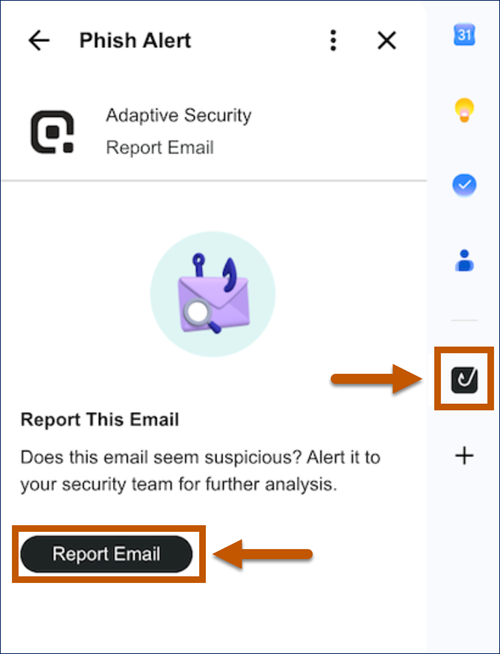
- If you receive a suspected phishing email (not a spam message), select the Phish Alert Button with the message open. (Select the black fishhook icon in the right-hand app panel.)
- On the Phish Alert window, select the Report Email button to report the phishing message.
- Open your Pepperdine email in the Gmail app.
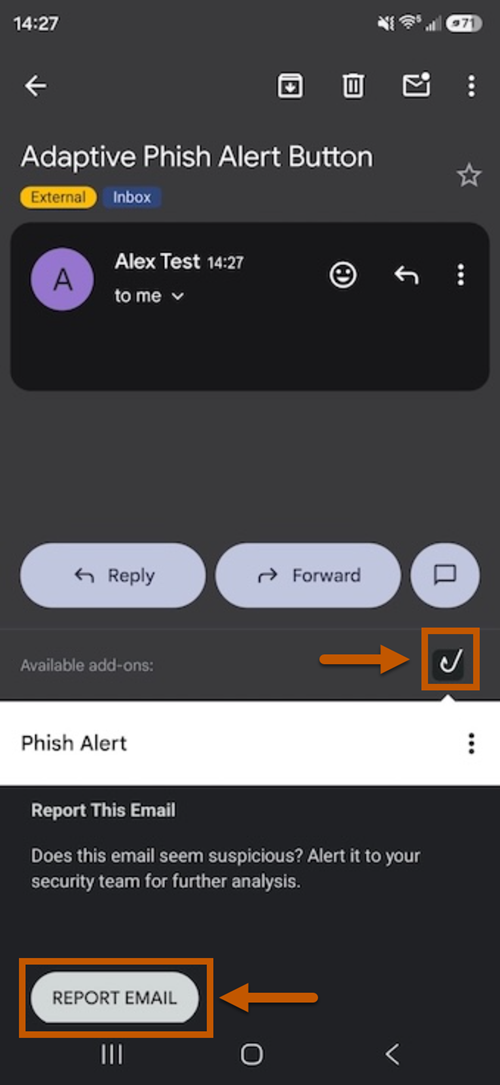
- If you receive a suspected phishing email (not a spam message), select the Phish Alert Button (fishhook icon) at the bottom of the message. (The fishhook icon should appear either above or below the Reply and Forward options at the bottom of the message, depending on your mobile device.)
- When you press the Phish Alert icon, a message will appear. Use the Report Email button to submit the phishing message.
Frequently Asked Questions
The Phish Alert Button (PAB) should only be used to report emails you believe have malicious intent to steal your information.
Do not use the Phish Alert Button to report spam or marketing emails. Just delete spam messages. You may also use the Gmail "Report Spam" option to report the spam to Google and remove the message from your inbox.
If you cannot find the Phish Alert Button, and you suspect an email is malicious, please just delete the suspicious email.
Yes! That is why you must always check the web address bar for encryption and a matching web address (or domain name) when entering your password. Logos and branding are publicly available and can be easily copied into an email or a web page.
Check the Domain of a Web Link
The domain is the primary part of a web address that identifies the company, organization, or service. The domain name will precede the first single forward slash in the web address. The domain is emphasized in bold or underlined in each visual example:
- Pepperdine University: logon.pepperdine.edu/

- Google Gmail: mail.google.com/

Check that a Web Page is Encrypted
Most modern web browsers will warn you if you visit an unencrypted (not secure) website. In some web browsers, you may see a shield or a lock icon to indicate that a website is secure. Others will prominently say, "Not Secure," or may display a lock icon or shield with a slash, or another similar warning.
- Google Chrome: Check if a site's connection is secure.
- Mozilla Firefox: How do I tell if my connection to a website is secure?
- Apple Safari: If you see a 'Not Secure' warning while browsing with Safari.
- Microsoft Edge: Securely browse the web in Microsoft Edge.
Don't take action on the suspect request. Do not click links, send emails, or use phone numbers associated with the suspicious message.
Instead, try contacting the sender using verifiable information to see if it is real. Again, use a published phone number, email, or web address for the alleged sender; do NOT use any information from the suspicious email.
Immediately change your password! Use Pepperdine's MyID to change your password. Then, call the Information Security Office at 310.506.4040. Learn more at Report a Security Incident.
Pepperdine's first line of defense is you. Pepperdine's Information Security Office offers routine notices and training campaigns to raise awareness for faculty, staff, and students. Please review the available Security Training resources and our prior community outreach on our IT Blog.
The University's spam filter blocks the overwhelming majority of spam and phishing messages, but some will get through. You can read more about the spam filter on the Spam Filter FAQ.
See Also
- Security Training
- Security Blogs
- Pepperdine Email
- Pepperdine Spam Filter
- Departmental Mass Email Tips