Hide/Show Tools in a Site
Overview
Learn how to hide unnecessary tools from the main course menu for students.
What Does It Do?
Through the Canvas class site Settings and Navigation tab, professors can hide select tools from student view. Hiding a tool from students doesn't mean it also hides the tool from professors.
How You Can Use It
- Streamline the student experience.
- Avoid student confusion.
- Improve the professional appearance or polish of your site design.
Instructions
- Open your desired course in Pepperdine Canvas.
- Choose the Settings tool at the bottom of the course main menu.
- At the top of the Settings page, select the Navigation tab.
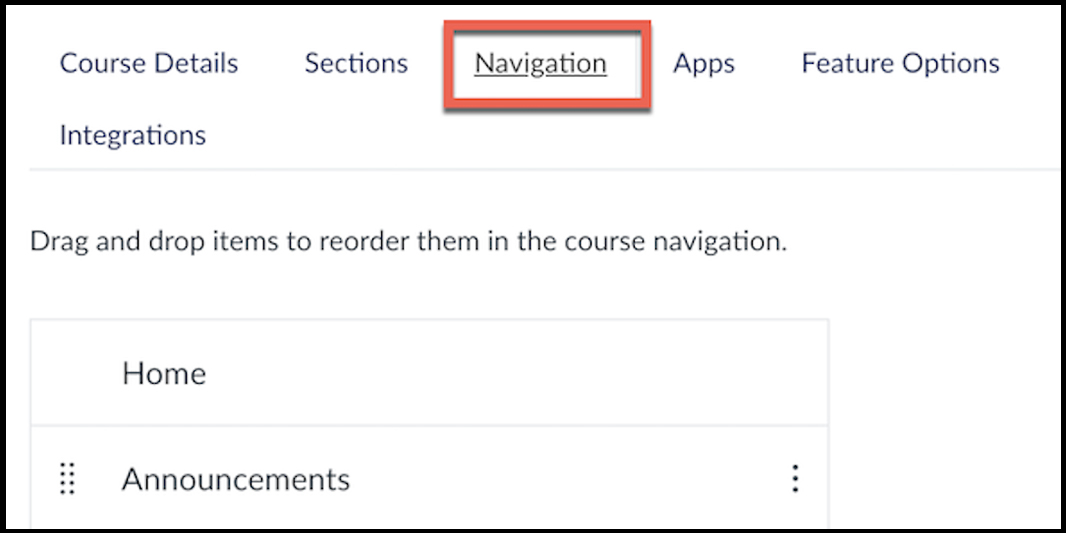
-
You'll see two sections:
-
Visible to students (top section)
-
Hidden from students (bottom section)
-
- Drag any tool you want to hide from the top section to the bottom section.
- Re-Ordering Tools
- To reorder tools that remain visible, drag and drop them within the top section.
- Scroll to the bottom of the page and select Save to confirm your updates.
← Back to Pepperdine Canvas Faculty Guides
← Back to Pepperdine Canvas Home