Managing Quizzes in Panopto
Instructor Overview
Panopto’s interactive quizzing feature allows instructors to embed knowledge checks directly into their video timelines. Adding quizzes to educational videos boosts student engagement, reinforces key concepts, and transforms passive viewing into an active learning experience.
Through the Panopto editor, professors can easily create various question types, customize navigation settings (such as blocking a student from skipping ahead until they answer), and review detailed compliance and grading analytics directly within the platform.
Add a Quiz to a Panopto Video
Learn how professors can add a quiz to a Panopto video.
Prerequisites
- Creator access to Panopto
- Panopto tool added to the Pepperdine Canvas class site
Create a quiz
- From Pepperdine Canvas....
- Go to the class site that hosts the Panopto video.
- In the main course navigation, select the Panopto tool.
- Hover over the hyperlink (the title of the video) that you would like to add a quiz
to, and select "Edit."

- From Pepperdine Panopto...
- Go to the location of your course video (e.g., "My Folder" or search for the video title).
- Hover over the specific video and choose "Edit."
- In the left navigation of the video editing page, select "Quizzes."

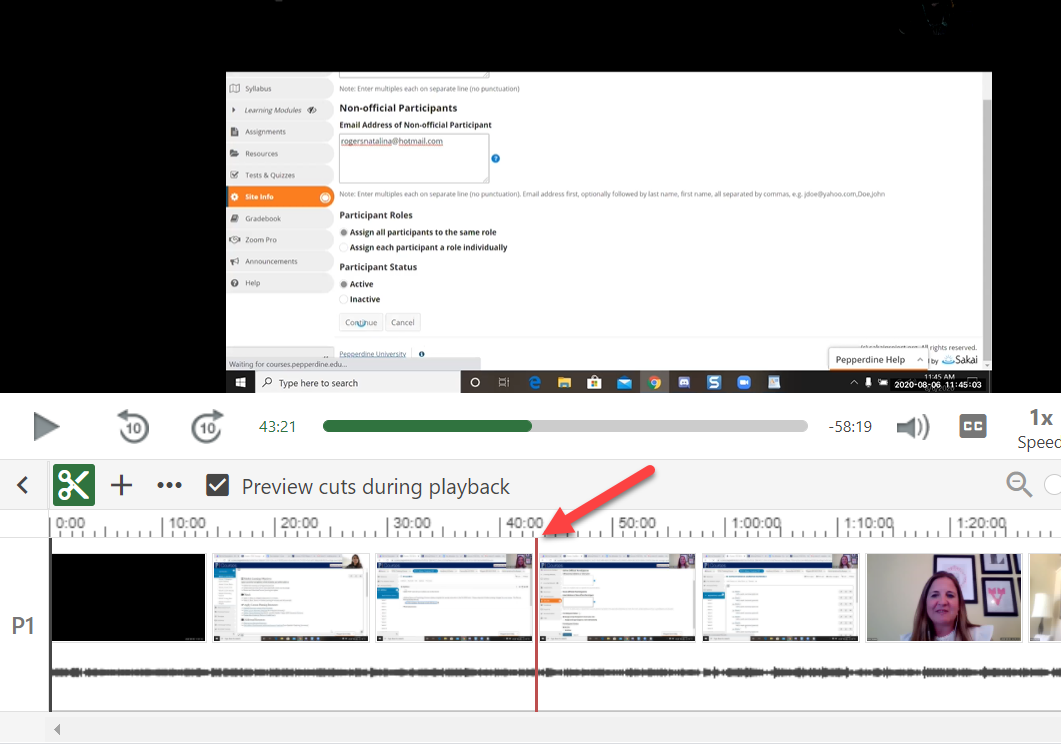
- In the timeline, go to the moment where you wish to place the quiz. The red vertical
line will indicate where the quiz will be added in the video.
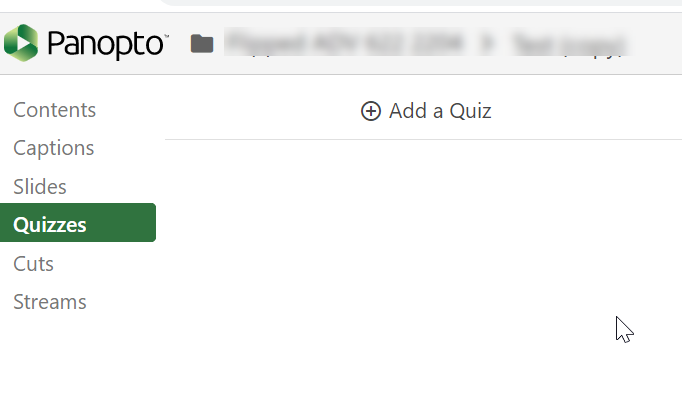
- Select "Add a Quiz."
- A quiz window will appear in your secondary stream window where you can fill in the
details for your quiz.
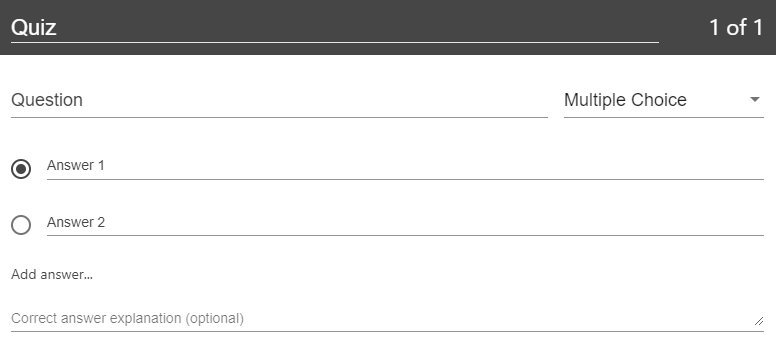
- Within the form, you can select the drop-down menu in the top right corner to show
different types of quiz questions. The quiz options include True/False, Multiple Choice,
Multiple Select, and Fill in the Blank. The default is multiple choice.

- Multiple Choice: Gives you the option to have several answers present, but only one answer can be
chosen as correct. When the option is first chosen, there will only be two answer
fields. Another answer field can be added by clicking the "Add Answer..." button.
You need to have the correct answer selected before adding another question.
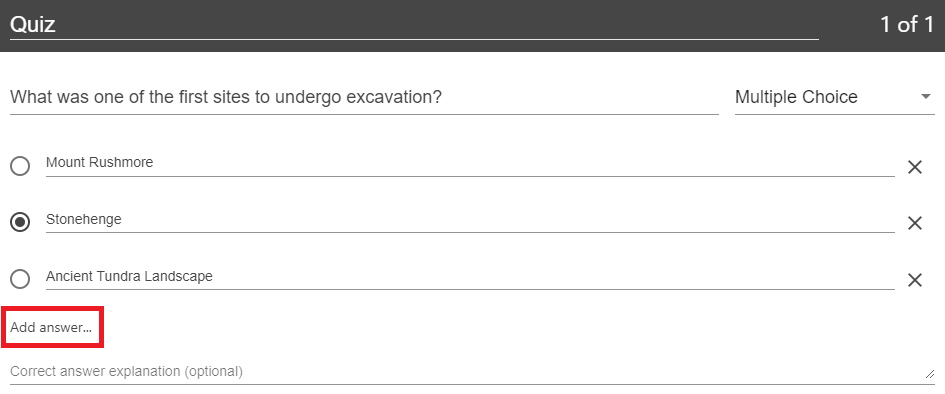 To remove an answer, you can select the "X" next to any of the answers.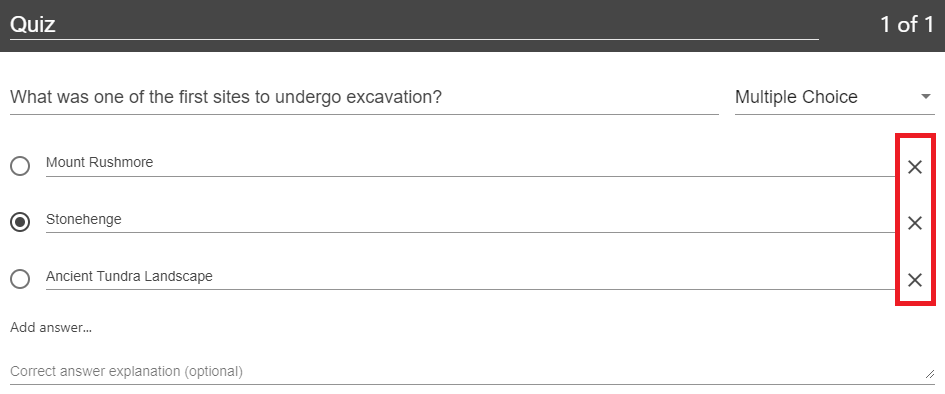
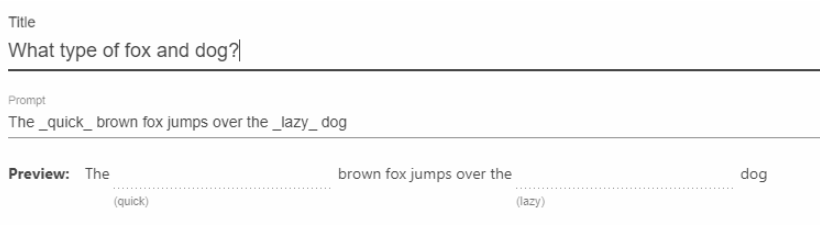
- Fill In the Blank: Gives you the option to ask questions that require users to fill in answers to the
question. The prompt will ask for the correct answer to be provided.
- Other quiz question types include...
- True/False, which gives you the option to ask a True or False question.
- Multiple Select, which gives you the option to have several answers present, and more than one can be selected as correct. Note: when using multiple select, all correct answers must be selected by the viewer in order to be marked as a correct response.
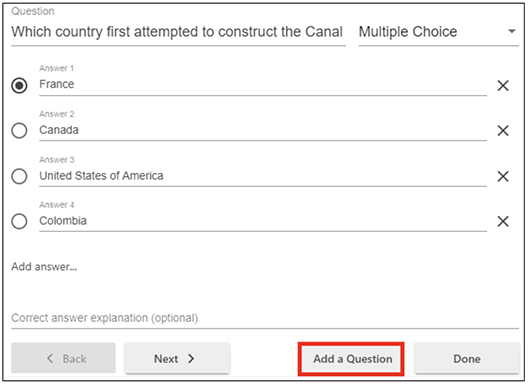
- Once done with the current question and you want to add another one, choose the "Add
a Question" button at the bottom of the form.
- If you need to navigate to a different question in your quiz, you can use the "Back"
and "Next" buttons at the bottom of the form.

- Once you have added all of your questions, select the "Done" button at the bottom
of the form.
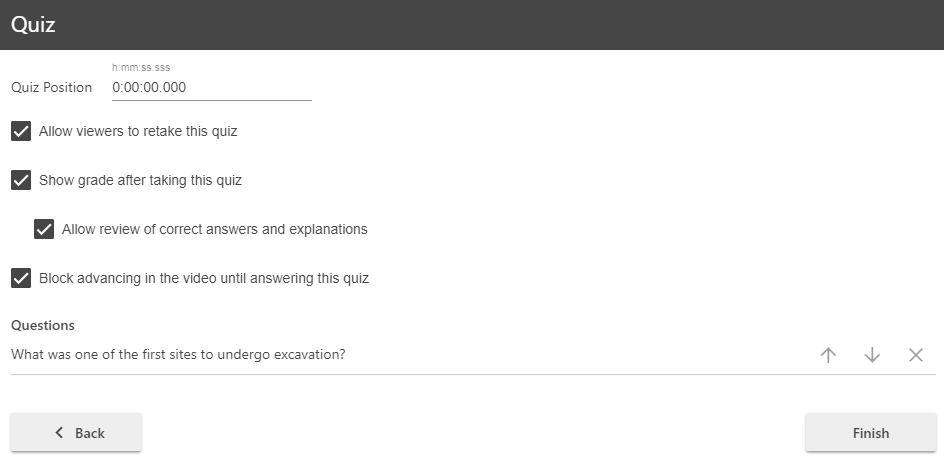
- You will then be directed to the "Options" page for this "Quiz." In this page, you
can:
- Allow viewers to retake the Quiz
- Show grade after taking this quiz (if this is enabled, you can also allow review of correct answers and explanations)
- Block advancing in the video until answering this quiz
- Delete questions by clicking the Xs
- Reorganize the questions by using the arrows.
-
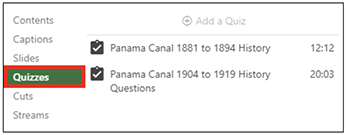
Once you are finished, select the "Finish" button. The name of your quiz will now appear in the Quizzing pane.
- Multiple Choice: Gives you the option to have several answers present, but only one answer can be
chosen as correct. When the option is first chosen, there will only be two answer
fields. Another answer field can be added by clicking the "Add Answer..." button.
You need to have the correct answer selected before adding another question.
- Repeat these steps for each quiz you want to add to your session.
- When you are finished editing your video, click "Apply."
Edit a Panopto Quiz
Learn how to edit an existing quiz within a Panopto video.
Instructions
IMPORTANT: Please note that changing the quiz settings, such as the ability to retake the quiz or show a quiz taker their score, will not clear quiz results. Making any changes to the quiz questions, however, such as changing the answers, wording, or question order, will clear any previously recorded quiz results.
- Open your video in the editor.
- Select the "Quizzes" tab from the left navigation, then select the quiz you want to
edit by clicking on it.
- If you attempt to edit a quiz that someone has already completed, you will receive
a warning message that they may need to retake the quiz. Select the Continue button
to proceed with editing.
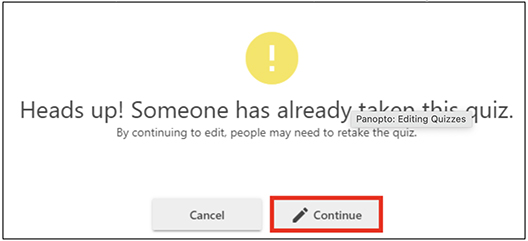
- If you attempt to edit a quiz that someone has already completed, you will receive
a warning message that they may need to retake the quiz. Select the Continue button
to proceed with editing.
- To edit the quiz name, questions, or text, simply click on the text you wish to change.
The editor will open the quiz to the first question; to change which question you
are on, select the "Next >" button in the bottom left hand corner.
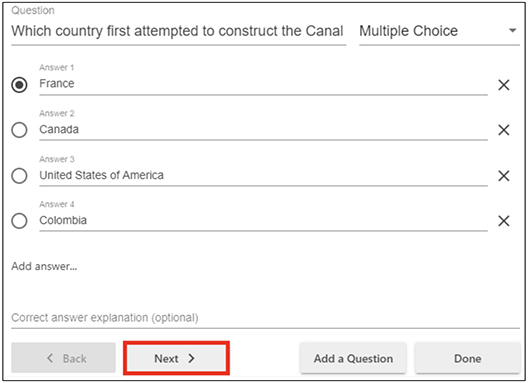
- To add questions to your quiz, select the "Add a Question" button.
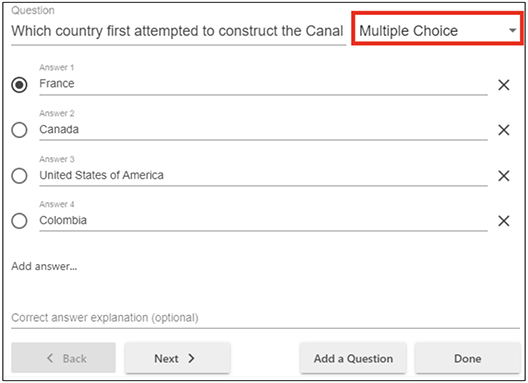
- You can change the question type by selecting the drop-down menu in the upper right-hand
corner of the quiz. Note: If you change a multiple choice or multiple select question
to a true or false question or fill in the blank, but do so on accident, your answers
for the multiple choice or multiple select will be erased and you will need to type
them back in.
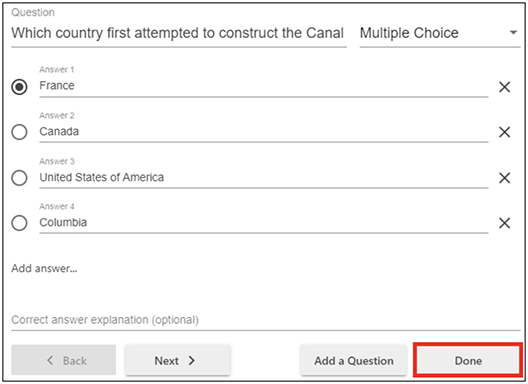
- To edit your quiz options, including where it is positioned in your video, or to save
the changes made in step 3, select the "Done" button.
- This will take you to the quiz options, where you can change the settings you selected
or deselected, reorder or remove a question, or adjust where the quiz appears in the
video.
- To reorder your questions, use the up and down arrow icons to its right. Note: the
questions will appear in the order in which they are asked.

- To remove a question, select the X icon to its far right.

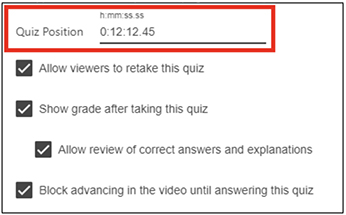
- To adjust where your quiz appears in the video, make a note of the time stamp where
you want the quiz to fall, and then type it in at the top of the page next to Quiz
Position. Note: the time stamp is written in as h:mm:ss.ss.
- To save your changes, select the Finish button at the bottom of the quiz window.
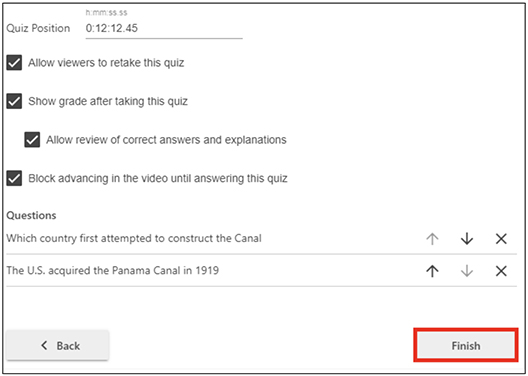
- To reorder your questions, use the up and down arrow icons to its right. Note: the
questions will appear in the order in which they are asked.
View Panopto Quiz Results
Learn how instructors can view the results for quizzes within a Panopto video.
Instructions
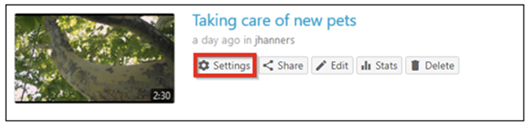
- To access the results of a quiz, click the settings icon on the session where the
quiz was created.
- On the left, click the Quiz Results tab to display the results.
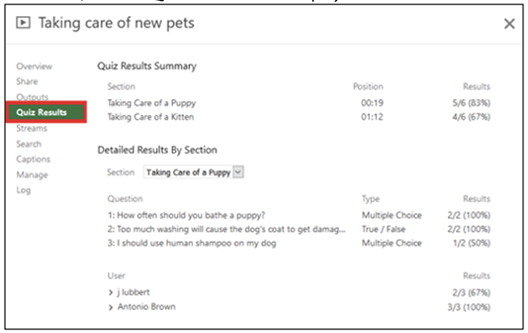
- From this tab, you can see the Quiz Results Summary which shows the total number of
correct answers and questions as well as the percentage correct for each quiz. You
are also able to get a more detailed view of results by section. Click the Section
drop-down to select which quiz section to drill into.
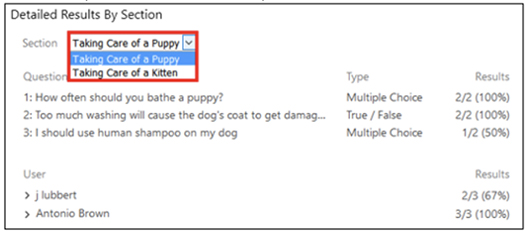
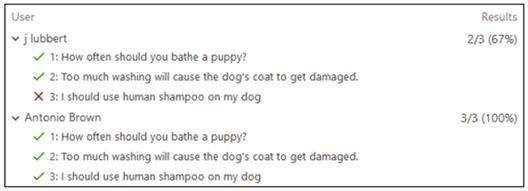
- You can also expand each user to see which questions they answered correctly and which
questions they did not.
- You will also see an option to Download. This will make it possible to convert the
quiz results to .csv files, including the username, quiz, question, response, and
correctness.

See Also: