Zoom AI Companion

Overview
Zoom’s AI Companion is designed to boost productivity and collaboration, acting as a smart assistant that automates note-taking and summarizes information. Pepperdine's Zoom does not use any University data to train Zoom or its third-party artificial intelligence models.
Video: Zoom AI Companion Training (39 minutes, Pepperdine login required.)
AI Companion Features
Meeting Summary
Zoom’s AI Companion allows meeting hosts to generate AI-powered summaries of live meetings, capturing key discussion points and identifying next steps or action items. When enabled by the host, this feature automatically creates a shareable summary after the meeting ends. Hosts have the option to review and share the summary with participants via email or other channels, helping streamline communication and follow-up. Note: Transcription begins once the meeting host activates the meeting summary feature.
In-Meeting Questions
Allows participants to privately ask AI Companion questions about what's been discussed during a live meeting, without interrupting the flow of the meeting. This feature is great for people who join the meeting late or need to step away for a few minutes, or anyone who simply needs a quick recap or clarification. Note: Transcription begins once the meeting summary feature is activated by the meeting host. Questions that are asked of the AI Companion are only visible to the participant and not visible to the host or other participants.
Meeting participants can choose from a list of preset questions, such as:
- “Catch me up.”
- “Was my name mentioned?”
- “Are there any action items?”
- “What topics have been discussed?”
These preset questions are based on live meeting content, so they evolve as the conversation continues.
You can also type your own custom question at any time, such as “Was a date agreed on?” or “What was the decision on the name?”,
and the AI Companion will generate a response based on what has been discussed so
far. Note: You can rate each response using the thumbs-up and thumbs-down icons to help
improve accuracy.
Third-Party Notetaking Apps Not Supported
Zoom’s AI Companion is now the preferred and supported option for automatic meeting summaries. It integrates directly within the Pepperdine Zoom environment and adheres to institutional privacy policies, making it the most secure and compliant tool for capturing meeting content. As a result, third-party notetaking and transcription apps—such as Otter.ai and Fireflies.ai—will be blocked from accessing Pepperdine Zoom meetings.
Set up AI Companion in Your Pepperdine Zoom Account
To use AI Companion, meeting hosts need to enable the features in their Pepperdine Zoom account.
- In a web browser, go to zoom.pepperdine.edu and select Sign In.
- Select Settings in the main navigation (left menu on a computer browser) and make sure the AI Companion tab is selected.
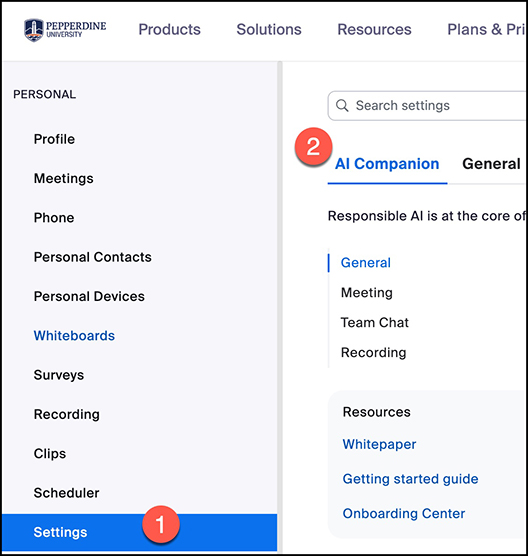
- Enable or disable the desired options:
- Allow users to ask AI Companion questions about the meeting. This feature allows meeting hosts and participants to ask AI-generated questions during a live meeting.
- Meeting summary with AI Companion. This feature allows the host to generate an AI-generated Meeting Summary after the session ends.
- Remind me to turn on AI Companion when I'm hosting a meeting. When this option is enabled, Zoom will remind meeting hosts to turn on AI Companion features in a live meeting.
- Smart recording with AI Companion. This feature allows Zoom to add AI-powered enhancements to your cloud recordings (e.g., highlights, summary, smart chapters, etc.).
- Once the options are enabled, the features will be available in future meetings that you schedule.
Select a Setting to Learn More
Allow Users to Ask AI Companion Questions About the Meeting
When this feature is enabled, it allows both the host and the participants to ask AI-generated questions during the meeting.
- The questions are answered in real time based on the live meeting transcript, without interrupting the speaker.
- This feature is great for people who joined the meeting late because they can ask the AI Companion to “Catch me up” or “What did I miss?” Note: This feature allows people to get the context they need without stopping the flow of conversation. It’s also helpful for participants who step away for a few minutes or need clarification on something.
- A couple of things to keep in mind with this feature:
- This setting must be manually enabled by the host in the Zoom web portal.
- If this setting is turned off, participants will not see the AI Companion question panel, even if the Meeting Summary is on.
Meeting Summary with AI Companion
When this feature is enabled, it allows the host to generate an AI-powered Meeting Summary after the session ends.

- The Meeting Summary will include Key Discussion Points, Decisions Made, Action Items, and Next Steps.
- How this Feature Works
- The summary is automatically generated after the meeting concludes.
- The host has total control over whether or not the meeting summary is shared with participants.
- Why it’s Useful
- This feature is useful because it saves time on manual note-taking, helps attendees stay aligned on outcomes, and it’s also great for participants who missed the meeting or need a follow-up reference.
- A Few Things to be Aware of Regarding this Feature
- It must be enabled before the meeting begins.
- A cloud recording must be active during the meeting for the summary to work.
- And this feature is only available to hosts and co-hosts with permission.
Remind Me to Turn on AI Companion When I’m Hosting a Meeting
When this feature is enabled, Zoom will prompt you at the start of every meeting you
host to turn on AI Companion features like the Meeting Summary or In-Meeting Questions.

- This feature is helpful because it prevents missed opportunities to use the Meeting Summary or the In-Meeting Questions.
- Something to be aware of regarding this feature is that it does not automatically
enable AI Companion at the start of the meeting; it just reminds you to turn it on.
Smart Recording with AI Companion
When Smart Recording is enabled, Zoom will automatically add AI-powered enhancements to your cloud recordings,
so this feature can save you some time by summarizing, organizing, and analyzing your
meeting content.
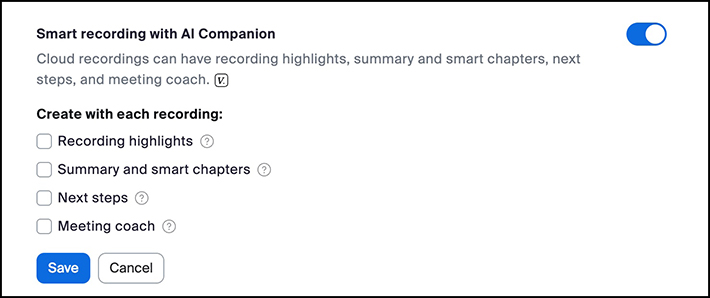
- Create with Each Recording
- Recording Highlights will automatically identify and bookmark key moments in the meeting, which is great for quick reviews or sharing important clips with your team.
- Summary and Smart Chapters will generate a written summary of the meeting, and break the recording into chapters so viewers can easily navigate by each topic that was discussed.
- Next Steps will allow AI Companion to identify follow-up items and suggested action items, which are really helpful for task management after the meeting ends.
- Meeting Coach will allow AI Companion to offer AI-generated feedback on things like talk time, filler words, and speaking pace, which is ideal for professional development and the presenters in the meeting.
Meeting Hosts: Zoom AI Companion Options
How to Start a Meeting Summary in a Live Meeting
Meeting hosts can start the Meeting Summary through the in-meeting controls, using the AI Companion icon in the toolbar (see below).

- Select AI Companion in the meeting tools (see above).
- Choose the button that reads, Start AI Companion.
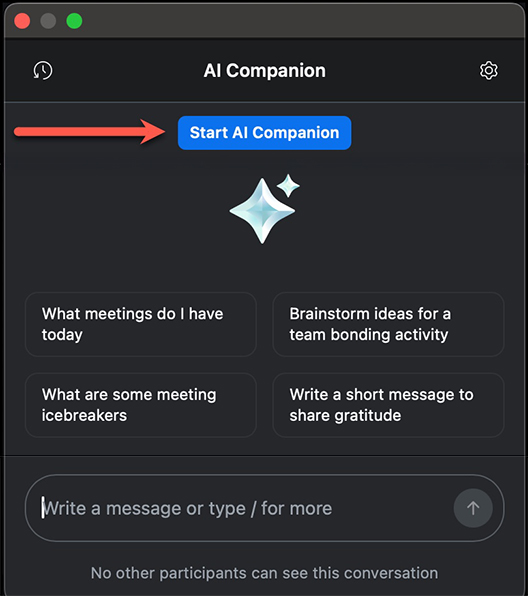
- Use the gear icon in the upper right-hand corner to adjust the Settings for AI Companion for the meeting you’re currently hosting.
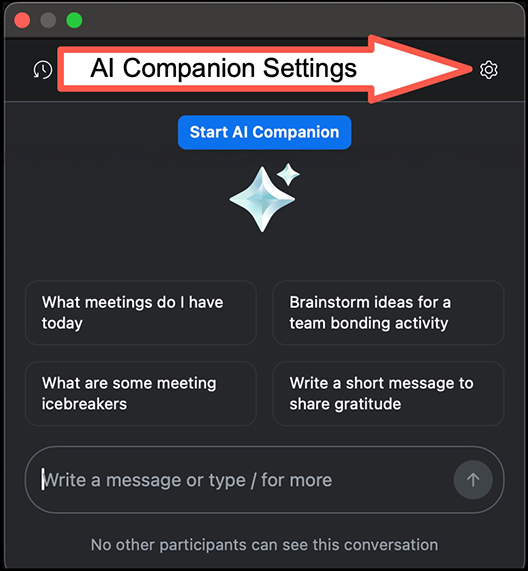
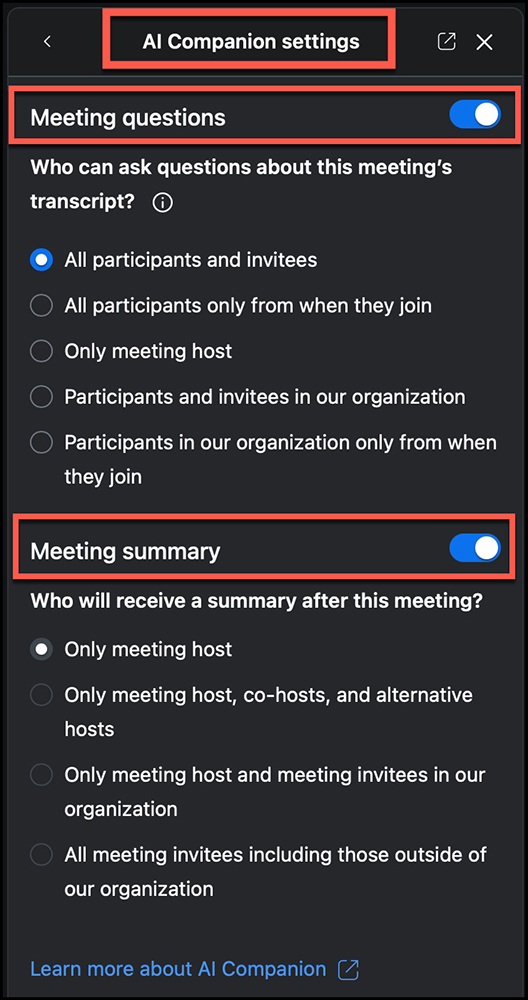
- You have the option to adjust the settings (enable or disable) for the Meetings Questions (who can ask questions) and the Meeting Summary (who will receive the summary), as shown below.
- Choose the audience for each feature using the radio buttons.
"Meeting Questions" determines who can ask questions about this meeting’s transcript.
- All Participants and Invitees will allow everyone in the meeting to ask the AI Companion questions.
- All Participants Only From When They Join will allow everyone in the meeting to ask the AI Companion questions, but only from when they join the meeting. For example, if you join the meeting 10 minutes late, you can’t ask questions about what you missed in those first 10 minutes of the meeting.
- Only the Meeting Host, meaning only the original host, alternative host, and users with host privileges that were assigned before the meeting, can ask the AI Companion questions.
- Participants and Invitees in our Organization mean exactly that. For example, if you’re in a meeting with a vendor or colleagues from another school or organization, they will not be able to ask the AI Companion questions.
- Participants in our Organization Only From When They Join means that only our members of the Pepperdine community can ask the AI Companion questions, but only from when they join the meeting.
Requirements to generate a Meeting Summary:
- Enable Meeting Summary with AI Companion in your Zoom account settings
- Be the meeting host (or co-host with permission)
- Start the Zoom AI Companion during the meeting
After the meeting, the AI Companion generates the summary and action items (if selected).
How to Stop a Meeting Summary in a Live Meeting
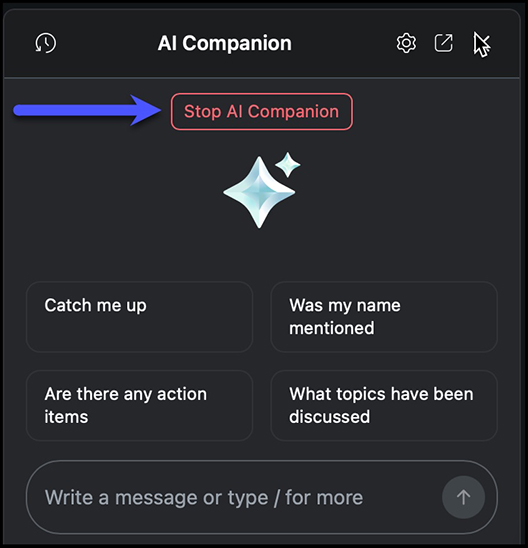
- Meeting hosts can stop the Meeting Summary through the in-meeting controls by selecting
the AI Companion icon in the meeting toolbar.
- To stop AI Companion, select the button that reads, "Stop AI Companion."
How to View & Manage the Meeting Summary After the Meeting
The Meeting Summary with AI Companion page allows you to view, edit, and share the summaries of meetings you hosted:
- To access the Meeting Summary, sign in to the Pepperdine Zoom web portal.
- In the main navigation menu, click Summaries.
- In the My Summaries tab, select from the list to access the meeting summary. Alternatively, enter a meeting
topic or ID, or select a date range to search for a specific meeting summary to be
displayed. Choose from the following options:
- Share: Send the summary through email. You will be prompted to enter one or more email addresses
or contact names, then click Share.
- IMPORTANT: Recipients of a summary must have the AI Companion summary feature enabled on their account in order to view and access shared summaries.
- Edit: Modify the summary and then click Save.
- Delete: Delete the summary. Note: This action cannot be undone.
- Share: Send the summary through email. You will be prompted to enter one or more email addresses
or contact names, then click Share.
Meeting Participants: Zoom AI Companion Options
How to Request that the Host Turn On AI Companion During a Meeting
- If the host does have Meeting Summary enabled for their meetings, any meeting participant can request that
it be started for the current meeting.
- When that happens, the host will receive an in-meeting request to start the Meeting Summary for the current meeting.
- If the host does not have Meeting Summary enabled for their meetings:
- Participants cannot request it during the meeting
- The AI Companion will not capture the meeting for summary, even if someone turns it on mid-meeting, because it must be on before recording starts.
- No summary or action items will be generated afterward.
How to Request a Meeting Summary as a Participant
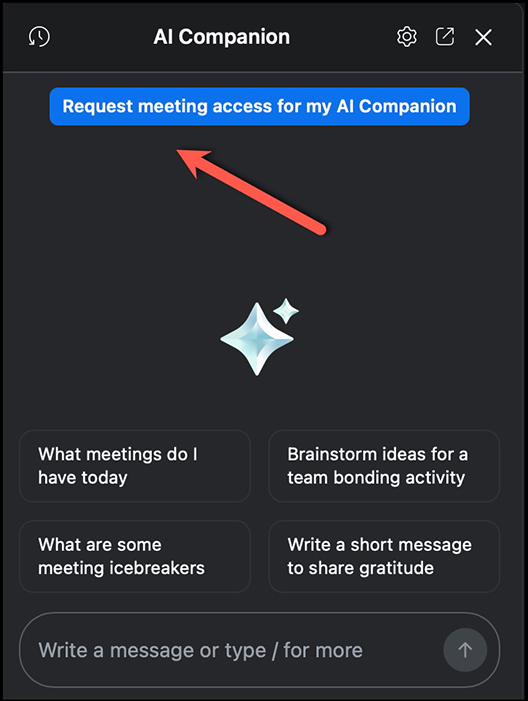
- In the meeting control toolbar, select AI Companion.
- Choose Request meeting access for my AI Companion. Note: A message will appear in the upper right-hand corner of the screen confirming
that you’ve requested access to AI Companion.
- After you submit the meeting access request for AI Companion, the host will receive
a pop-up message on their screen giving them the option to Deny, Deny All, or Start AI Companion.
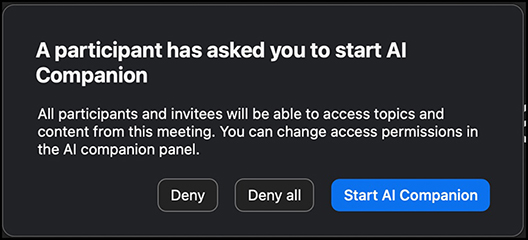
- Deny rejects the request from that specific participant, but other participants can still request to start the AI Companion during the meeting.
- Deny All blocks all participants from requesting AI Companion access for the remainder of the meeting, meaning the host will not receive any additional pop-ups from others asking to start AI Companion.
- Based on this functionality, if you’re the host of the meeting and you see this message appear on your screen, you’ll choose
Deny if you just want to decline one request, but are open to others. Otherwise, you’ll
choose Deny All if you want to avoid further interruptions or do not plan to use AI Companion at all for that particular meeting.
How to Ask the Host to Stop AI Companion During a Meeting
If you’re in a meeting as a participant and the host has started AI Companion, you can ask the host to stop AI Companion. Here's how:
- Select the AI Companion icon in the top bar of the application.

- Choose Ask Host to Stop AI Companion Features.
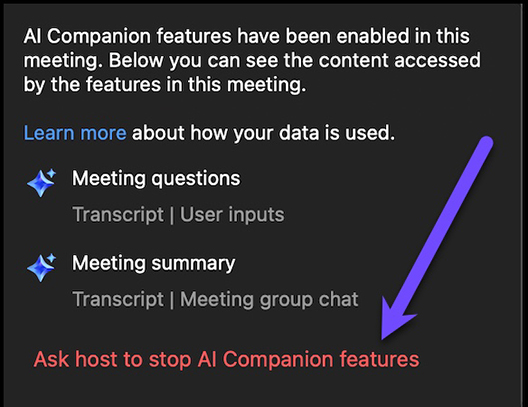
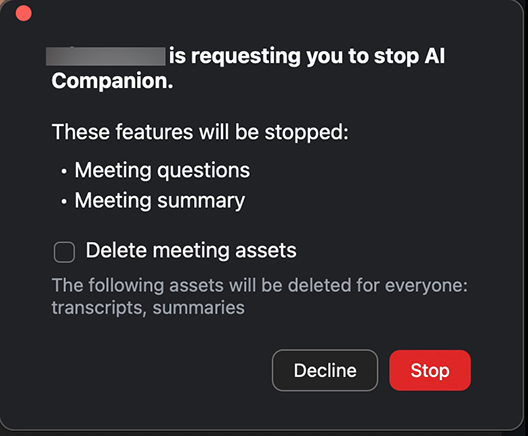
- The host will receive the following pop-up message providing the option to Decline the request or Stop AI Companion. The host will also have the option to Delete the Meeting Assets, which deletes the transcript and the meeting summary for everyone, including the host.
Zoom AI Companion Best Practices
- Always review AI-generated content before sharing externally.
- You should always review AI-generated content before sharing it externally—especially when sending to students, leadership, or external partners.
- Even though Zoom’s AI Companion does a great job summarizing the meeting, it’s not going to be perfect. So again, you should always read through your summaries before sending them out to ensure they’re accurate.
- Use meeting summaries for follow-ups, but confirm action items for accuracy.
- We strongly recommend reviewing the action items for accuracy because AI can identify action items, but it doesn’t always understand context or nuance.
- If you're using the summary to delegate tasks or confirm decisions, you should always double-check that those items are accurate and properly assigned.
- Enable/disable AI tools per meeting as needed to respect participant privacy.
- Some meetings are better suited for AI Companion than others, so we recommend enabling or disabling AI Companion per meeting as needed to respect the privacy of the meeting participants.
- For example, you may want to enable the Meeting Summary for project planning sessions, but turn it off for sensitive HR or student-related discussions.
- Promote transparency when using AI in class or team settings.
- You should be transparent when using AI Companion in class or team settings.
- Zoom does display a notification when the Meeting Summary is on, but it's still best practice to let the participants know, especially in a classroom or collaborative environment.
- Practice using AI in low-risk environments (e.g., internal meetings) before relying
on it for key events.
- We strongly recommend that you practice using AI Companion in low-risk environments before relying on it for key events.
- You should use it in informal or internal meetings first so you can get comfortable with how it summarizes, responds to questions, and shares content. That way, when you use it for important meetings or instructional sessions, you’ll know what to expect and how to manage it.