Faculty Guide: YuJa Panorama
Overview
YuJa Panorama allows professors to easily scan, identify, and remedy digital accessibility issues in their courses. The service is directly integrated within Pepperdine Canvas to promote a seamless experience.
Quick Links
How Do I Launch the Tool?
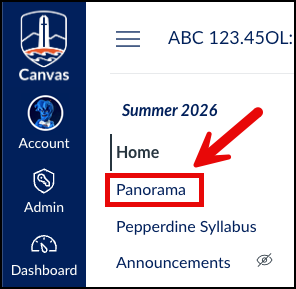
Panorama is natively integrated into Pepperdine Canvas. Note that it must be enabled in your course tool menu to access many of its important functions. Don't worry, students won't see the tool in the menu.
Panorama Tool
- Go to Pepperdine Canvas.
- Navigate to your Class site.
- Select "Settings" in the left navigation.
- Choose the "Navigation" tab.
- Scroll down and find the "Panorama" tool near the bottom of the page. Drag it to the top menu, such as below "Home" or "Announcements."
- Scroll down and select "Save."
Note: Be sure to add the tool, if it has not been added already. Schools and programs not yet using YuJa Panorama should wait for guidance from their Dean's Office.
Panorama Icons
- Go to Pepperdine Canvas.
- Navigate to your Class site.
- Select "Files", "Modules", "Pages" or another YuJa compatible tool.
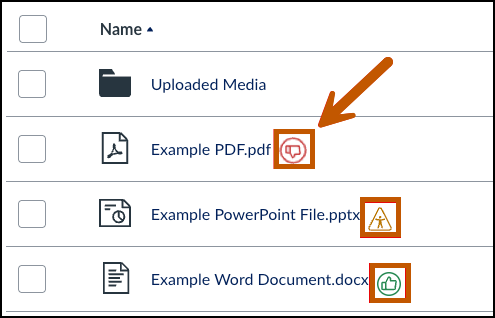
- Select the YuJa Status icon adjacent to the object.
What Common Issues Should I Start Fixing First?
Improving digital accessibility is a continuous journey, not a one-time sprint. To assist in prioritizing issues, the University recommends starting simple with the HEAL framework. HEAL stands for:
Step 1: Open Your Course Accessibility Report
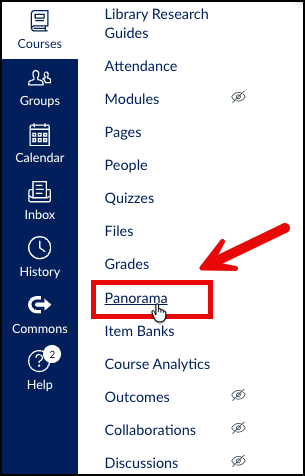
In your Pepperdine Canvas course, select the Panorama tool from your left-hand course menu. If you don’t see the Panorama accessibility tool in your course, see How do I launch the tool?
Step 2: Review Your Course Accessibility Report
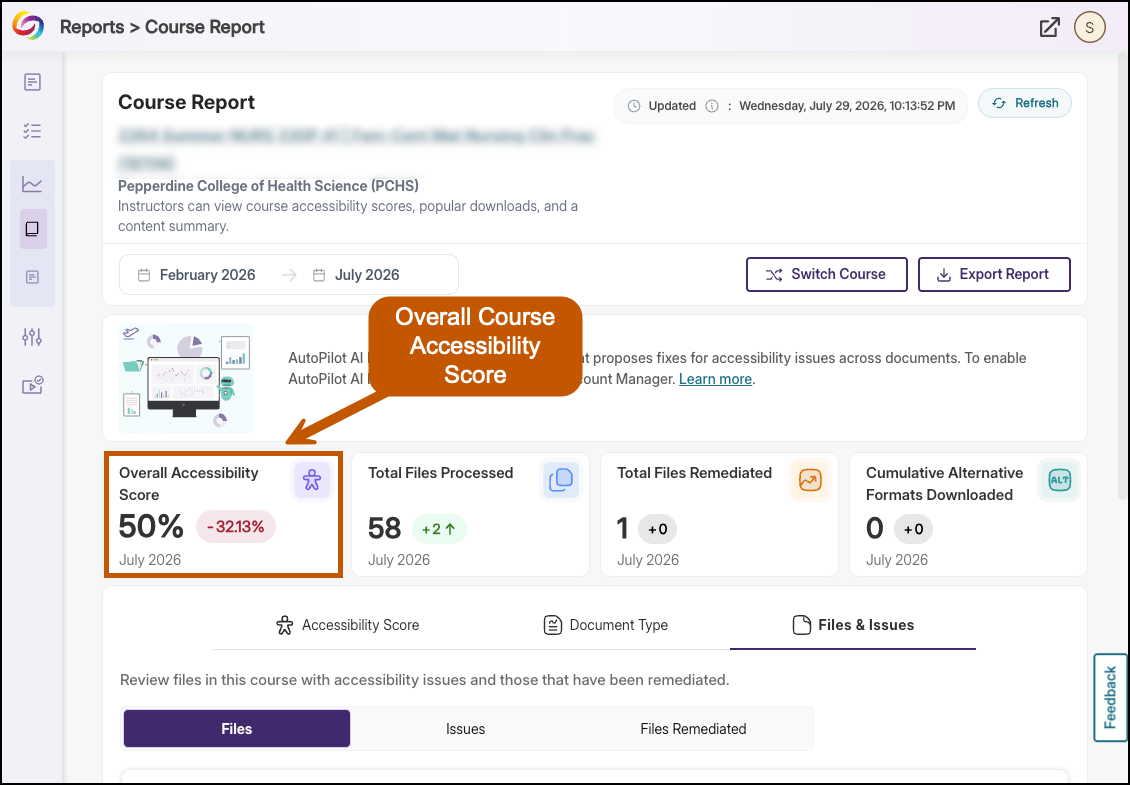
The Course Report provides a "birds-eye view" of your entire site’s accessibility:
- Total Accessibility Score: Aggregates all files, links, and text content to give your course a score.
- One-Stop Shop: Provides a central place for instructors to remediate all course content (pages, files, etc.).
Step 3: Locate and Filter by Severe Issues
Start by looking only for issues that are categorized as Severe.
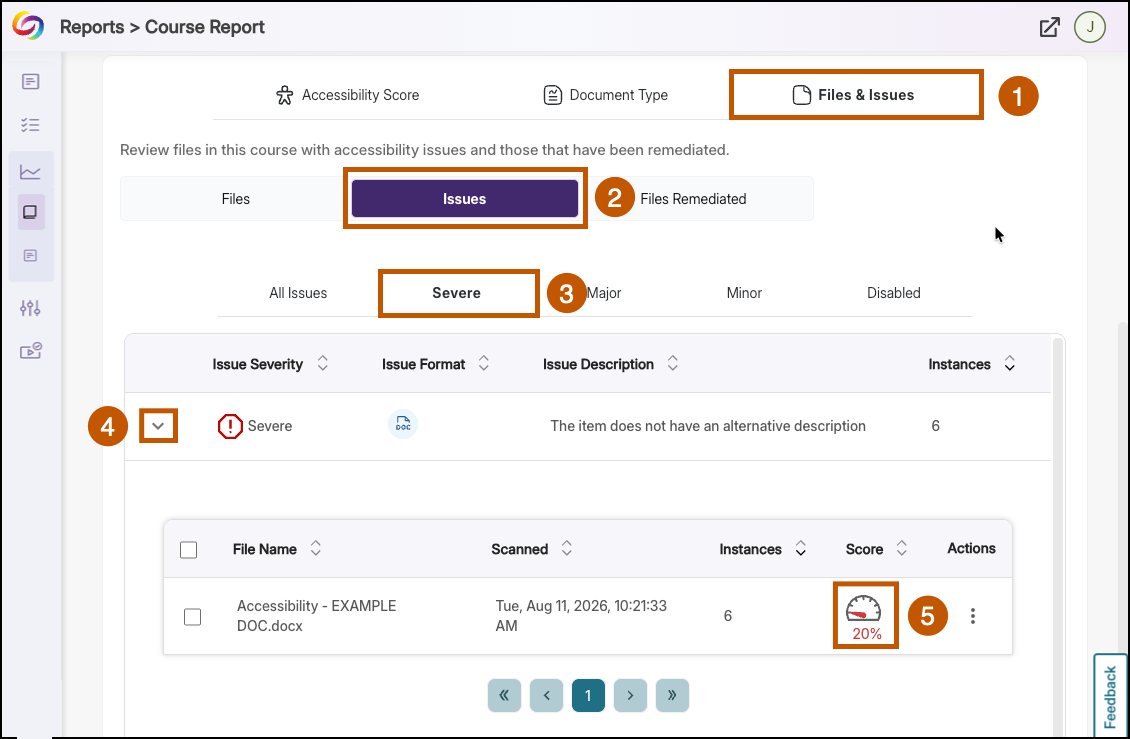
- Scroll down and select the “Files and Issues” tab to view a list of all files in your course.
- Then select the “Issues” tab. This view will help you identify the most widespread and serious accessibility problems across all your course materials.
- Sort the column labeled “Issue Severity" so that the "Severe" issues feature at the top.
- Select the first issue you would like to address.
- Next, select the meter icon for the file containing the severe issue to launch the
content's accessibility report.
Step 4: Review the Content's Accessibility Report and Start Remediation
The Accessibility Report in YuJa Panorama is an item-by-item diagnostic tool that assigns a score (0–100) to course content and details specific issues. It doesn't just tell you what is wrong; it provides a step-by-step walkthrough for fixing it directly within the Panorama interface (such as adding missing Alt-Text to images). Remember, focus on the "Severe" issues initially. You may return later to review and address other issues.
- Once you've entered the Accessibility Report, start by locating the content's first severe issue and select "View All [x] Instances."
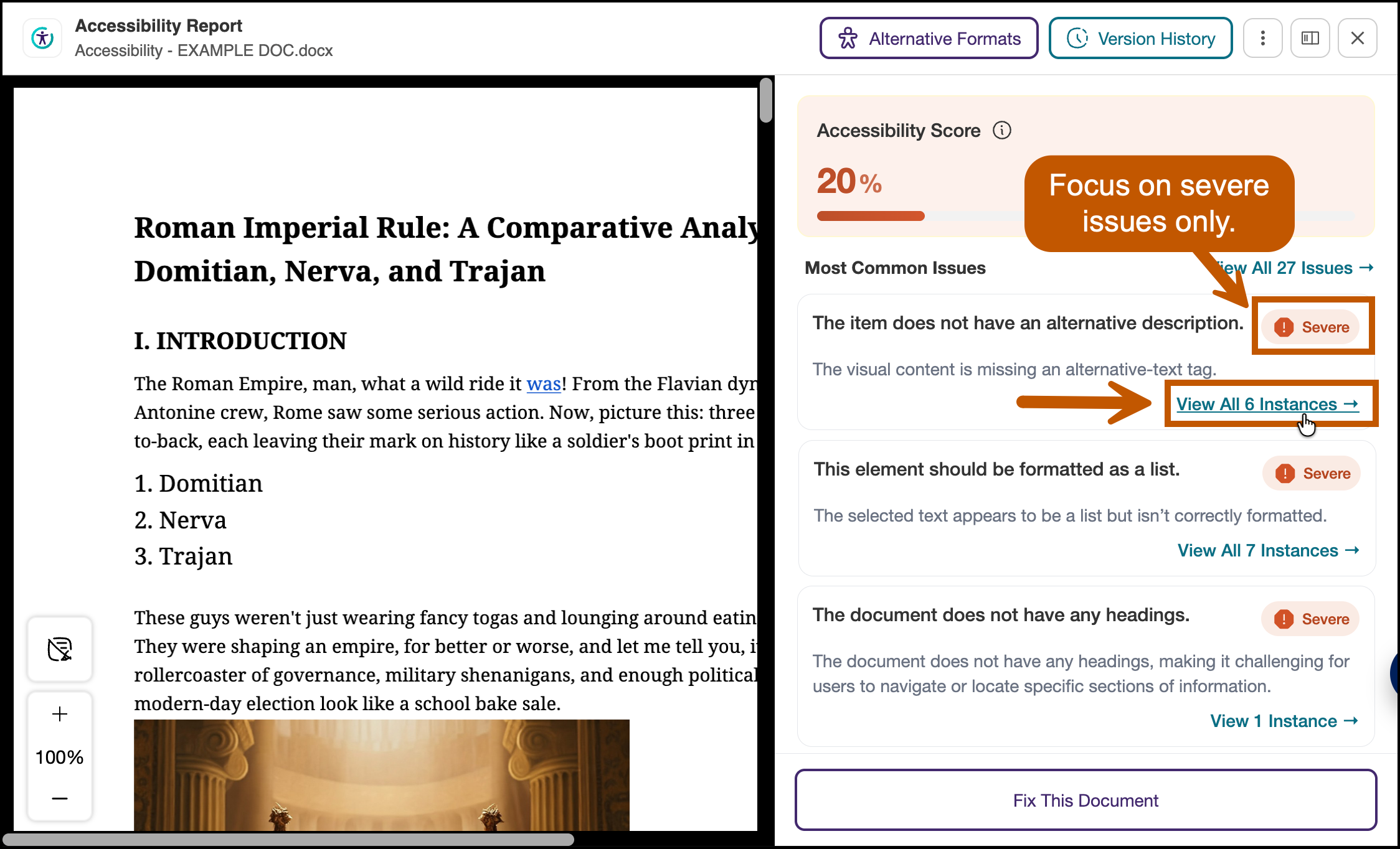
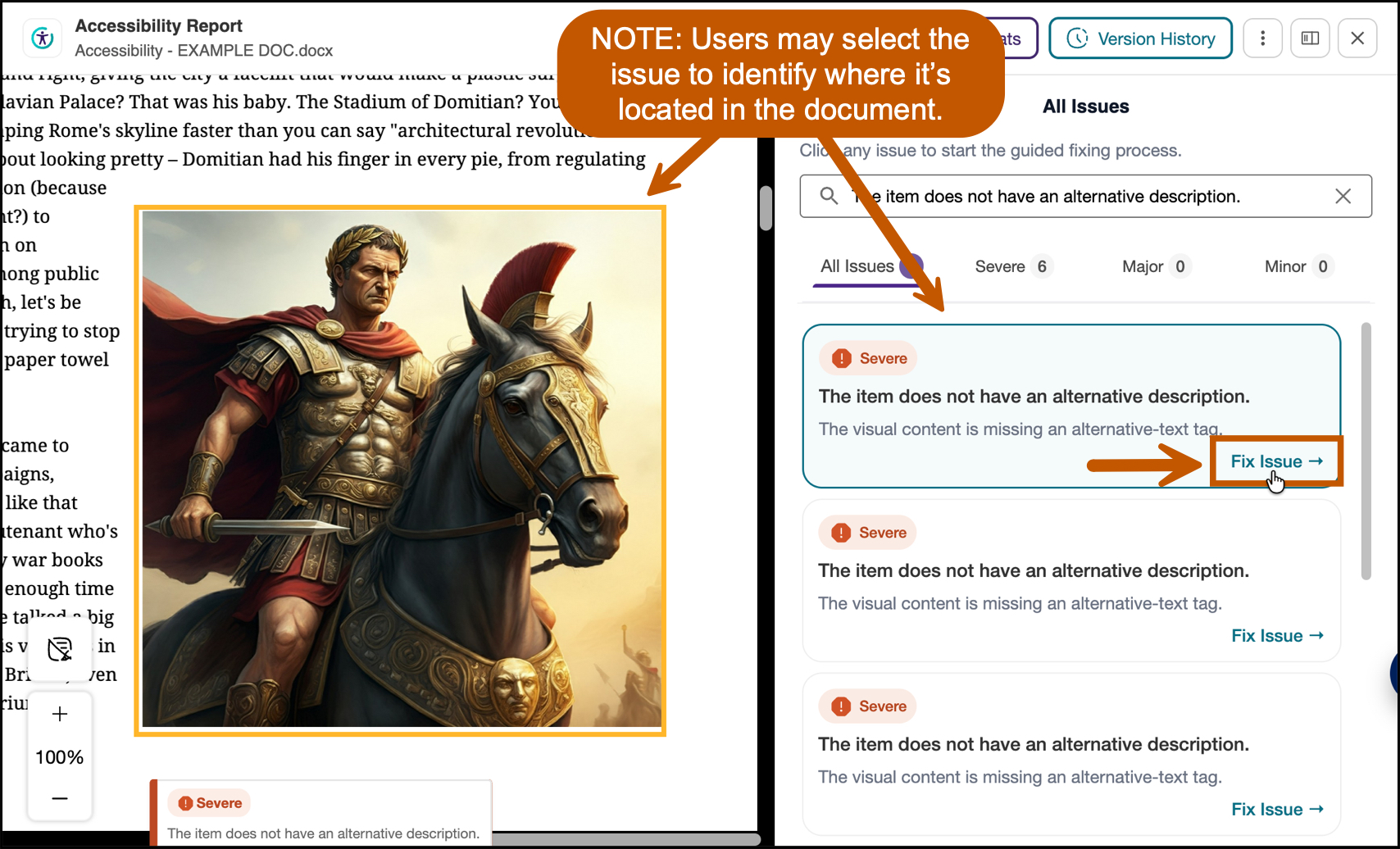
- The page will then display a list of all of the particular instances of that issue. Faculty can select the instance itself to identify where it is occuring
in the document. Then, when ready, select Fix Issue.
- On the following page, instructors will be guided through the identified issue and
the steps needed to resolve it:
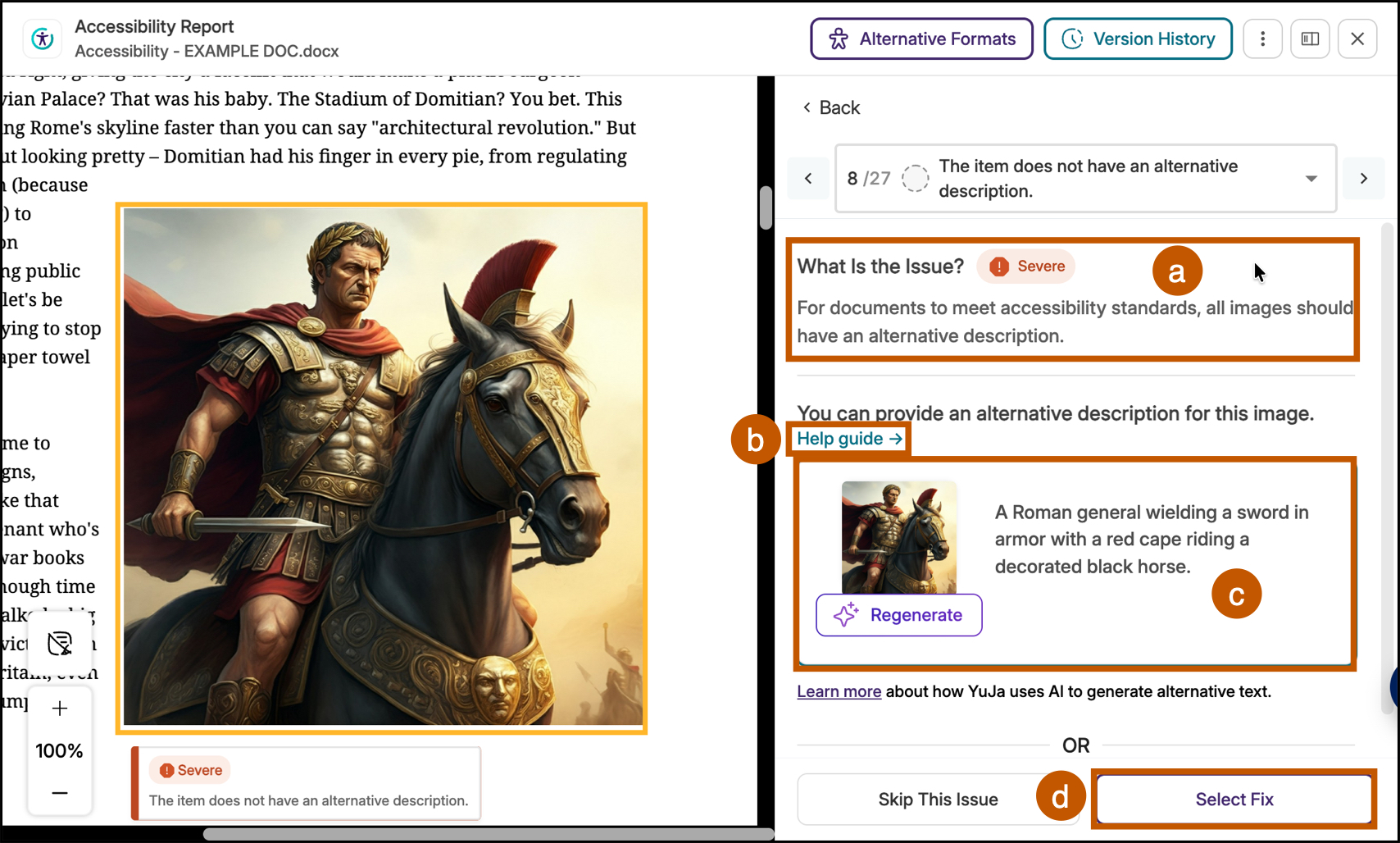
- Note the issue description provided beneath the “What Is the Issue” dialog. In this case, the YuJa service has identified an image in the document that needs an alternative (alt) text description. Learn more about alternative text descriptions.
- For more information about the issue, including steps to remediate the issue in the document's native application (e.g., Microsoft Word, Adobe Acrobat), select Help guide.
- Moving downward, the Panorama service showcases a dialog to fix the issue. In this case, the image needs an alternative text description. Pro Tip: Selecting the "Generate/Regenerate" button will leverage YuJa's AI services to generate a description for you, which you can then modify as needed.
- When finished, select "Select Fix." IMPORTANT: Selecting the fix is not the same thing as applying the fix. It's important to follow the remediation workflow until the very end to apply selected
fixes.
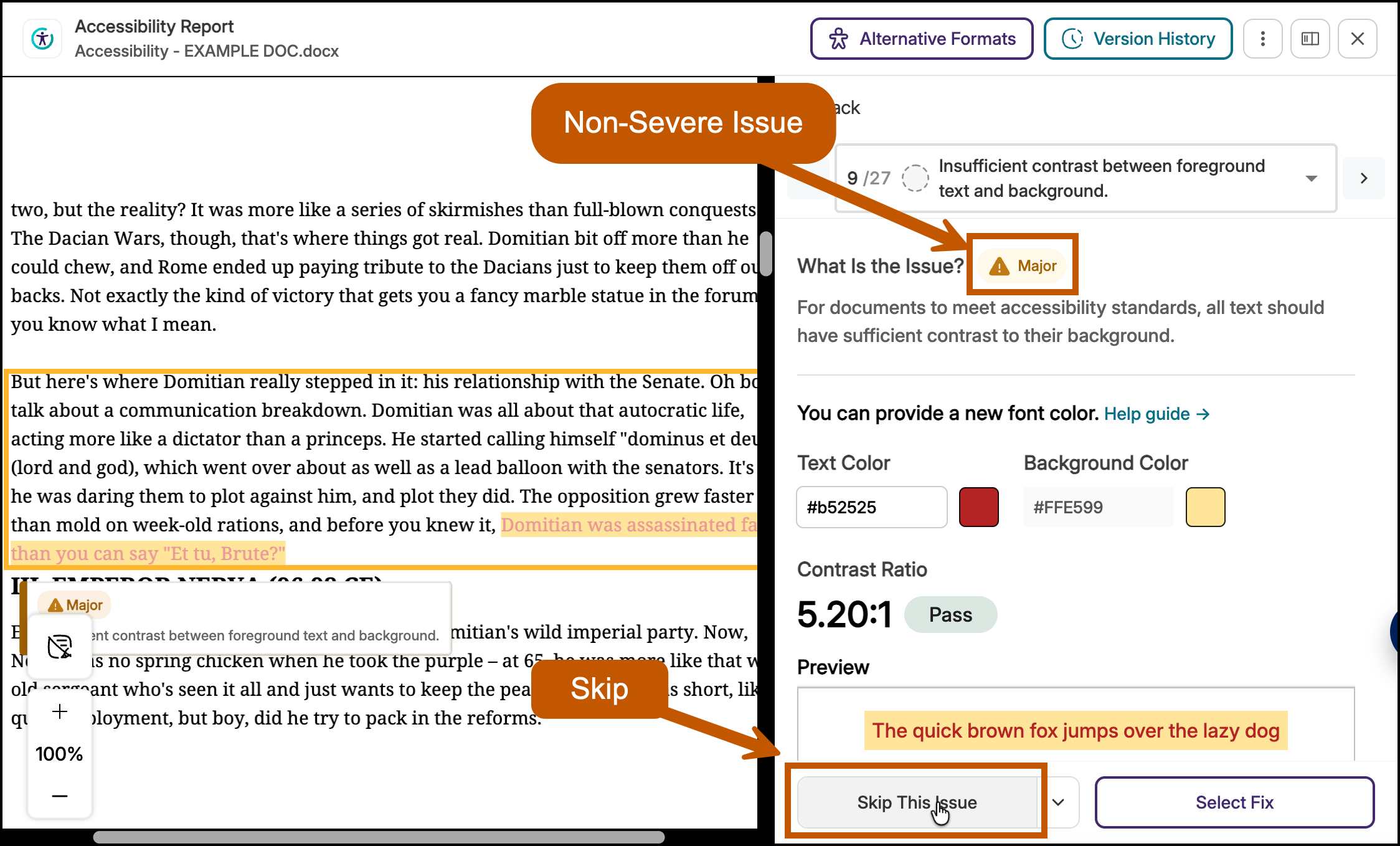
- At this point, instructors need to review all remaining "Severe" issues. If instructors
encounter a "Major" or "Minor" issue, they may temporarily skip it. (After fixing all severe issues, return to address Major issues, etc.)
- Once you've reached the end of the remediation workflow, it is critical to select the option to Apply [x] Fixes to Document.
![Screenshot of the remediation workflow showing the final step, where the user must select the Apply [x] Fixes to Document option to apply the completed accessibility fixes to the document.](/it/images/pepperdine-panorama-canvas-accessibility-report-severe-issues-4.png)
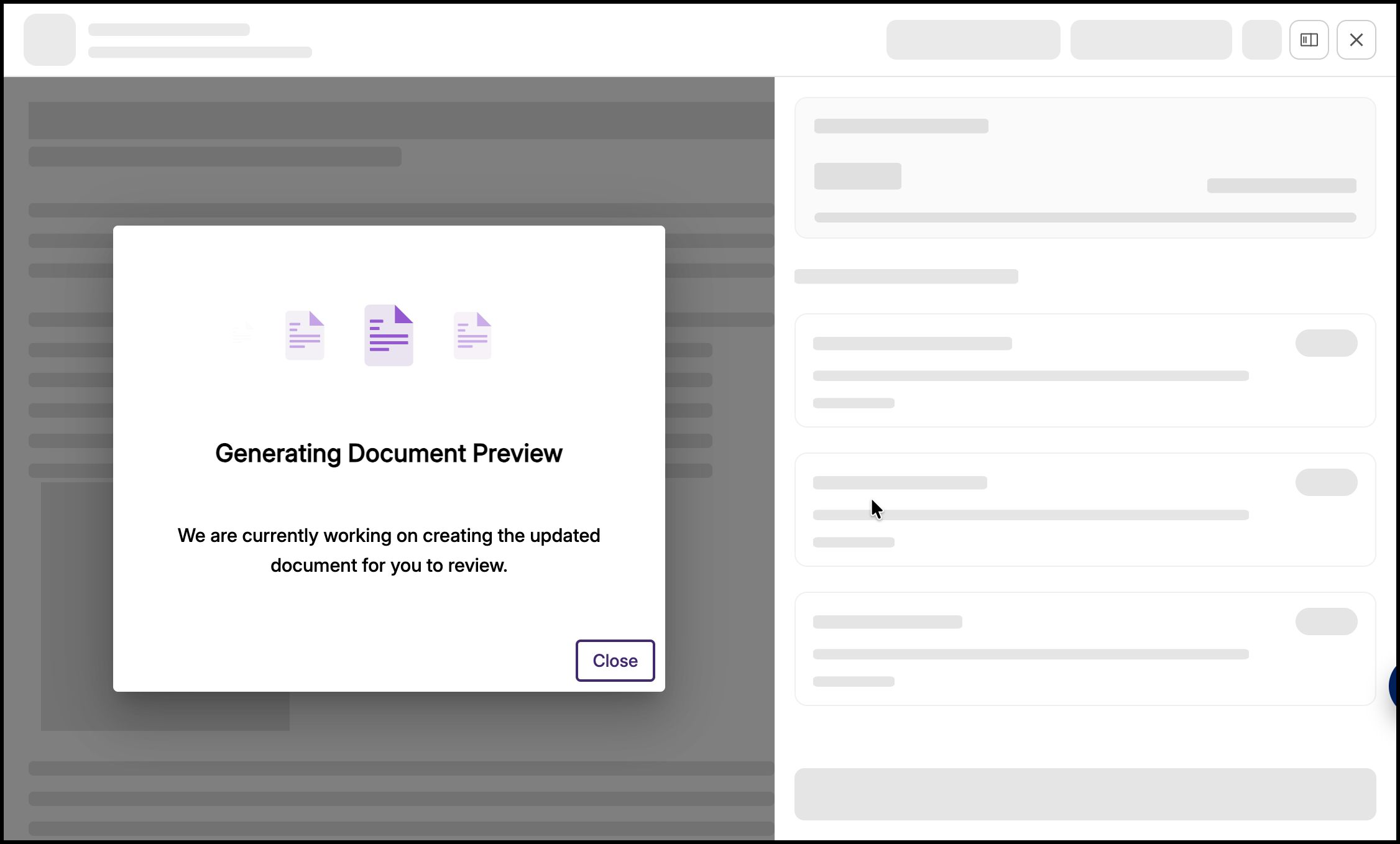
- The YuJa service will then take a few moments to process the changes.
After addressing all "Severe" items, return later to review the "Major" and "Minor" items. Tackle these as time permits or consult support resources, such as your local school support team, the Center for Digital Learning (CDL), or Technology & Learning for guidance.
What Do the Icons Mean?
As you navigate your Canvas site, you may see the following icons next to pages, modules, files, etc. Panorama uses a visual "gauge" system to indicate the accessibility health of a document. Students do not see these icons/scores. These scores reflect how accessible your content is:
| Icon | Icon Name | Score Range | Icon Description |
|---|---|---|---|
 |
Green Thumbs Up | 80-100% | This content has a High accessibility score. The file or content meets a majority or all universal design standards. |
 |
Yellow-Orange Warning Triangle | 50-79% | The content has a Moderate accessibility score. The file needs improvement, such as adding image alt text, improving the heading structure, and/or fixing color contrast issues. |
 |
Red Thumbs Down | 0-49% | The content has a Low or Severe accessibility score. The file is likely inaccessible to screen readers or has significant formatting barriers. Significant improvements are required. |
 |
Timer | N/A | A score or rating is pending. The associated item has not yet been scanned or is being processed. Please return later or refresh the page. |
What Content is Scanned by Panorama?
YuJa Panorama automatically scans a wide variety of content within your Canvas course for specific accessibility issues and then provides accessibility scores and alternative formats.
While most core Canvas tools and uploaded documents are scanned, external plugins, third-party tools, and specific administrative tools are currently excluded from the automated scanning process.
Scanned
- Uploaded Files (Word, PDF, PowerPoint, etc.)
- Canvas Pages
- Canvas Discussions
- Canvas Assignments
- Canvas Announcements
- Canvas Modules
Not Scanned
- Third Party Tools (e.g., Pepperdine Syllabus, Library Research Guides, Zoom Pro, etc.)
- Panopto Content (Linked or embedded videos)
- Files that live outside of Pepperdine Canvas (i.e., Google Drive, Dropbox, etc.)
- Student Submitted Content
- Canvas Rubrics
- Canvas New Quizzes
What are Alternative Formats?
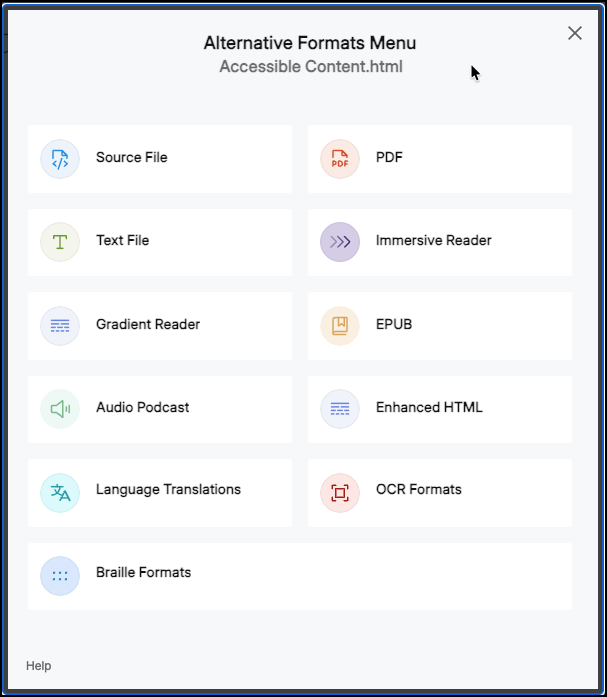
This is a student-facing feature that allows users to download course content in a format that best fits their learning needs. By clicking the Alternative Formats icon (a stylized "A" or download symbol), users can convert content into alternative formats, including (but not limited to):
- Tagged PDF: For better screen reader navigation.
- HTML: For responsive viewing on mobile devices.
- ePub: For e-readers.
- Audio (MP3): For listening on the go.
- Braille: For electronic braille displays.
What are User Settings?
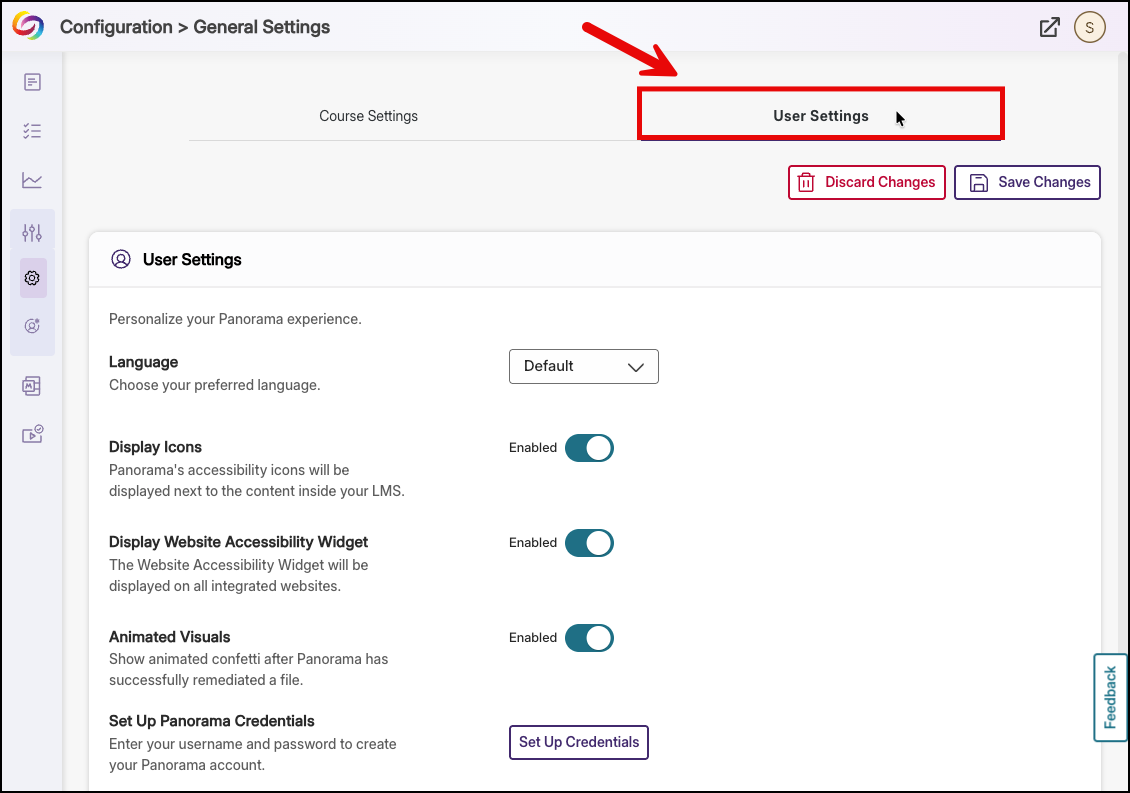
The User Settings menu allows you to customize your Panorama experience. You can review specific settings, such as:
- Visibility: You can toggle which icons are visible to you versus your students.
- Reporting: Adjust how often you receive summary updates.
- Personalization: Users can adjust the "Website Accessibility Widget" to change font sizes, contrast, and spacing on the fly without altering the actual course design.
To locate User Settings:
- Navigate to your Class site.
- Select the Panorama tool.
- Hover your cursor over the Panorama menu, and select Configuration > General Settings.
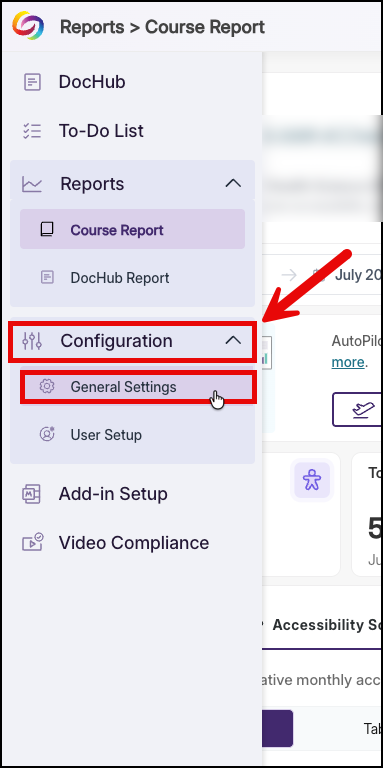
- Select the User Settings tab at the top.
How do Students Interact with Panorama?
Students have a different view. Students will see an accessibility icon (a circle with a person inside) to indicate that alternative learning formats are available for the specific item (see "What Content is Scanned by Panorama?"). Students can use the following steps:
- Identify the Panorama Icon: Look for the stylized accessibility icon located next to files within the Pepperdine
Canvas course.
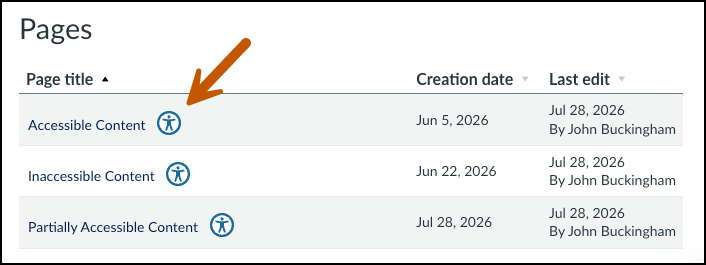
- Select Alternative Formats: Use the icon to view a menu of available formats, such as Tagged PDF, HTML, ePub,
or Audio (MP3).
- Download and View: Choose the format that best suits your needs. The file will be processed and then downloaded or opened in a new browser tab.
What is DocHub?
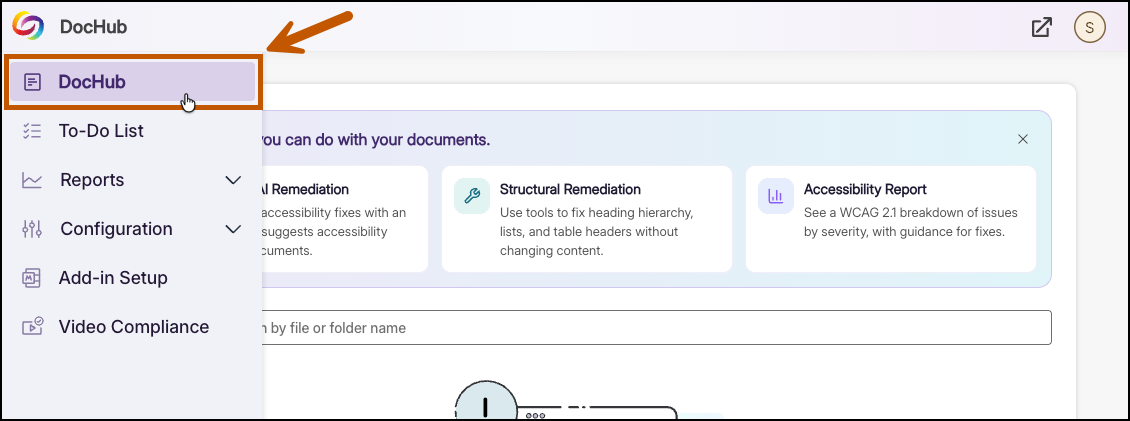
Depending upon the role, DocHub is a personal staging area for all users to upload and scan useful documents and organize them accordingly for future use.
- Instructors: It can be a useful place for instructors to try out and/or explore remediation fixes without impacting course scores.
- Students: Students can use DocHub to store content for easy access to alternative formats.
Note: Panorama’s DocHub does not replace Google Drive. Google Drive remains the recommended solution for general file storage and collaboration.
Technical Support
Help for Instructors
For training or questions on the effective usage of YuJa Panorama, professors may contact TechLearn for a consultation.
Instructors may also review YuJa's Support Documentation and contact YuJa for direct support with the platform.
For assistance with a Pepperdine University network account, computer support, or guidance on clearing browser cache, please contact Tech Central at 310.506.4357 (HELP).
Where to Direct Students
A student guide is coming soon! In the meantime, please direct students to YuJa's Getting Started Guide for Panorama.
See Also
← Back to YuJa Panorama at Pepperdine