Pepperdine | Community

Security Training

Overview

Pepperdine University has established the Information Security Office (ISO) to assist the community in keeping our data secure and helping to maintain trust in the University by safeguarding student data. The ISO security program includes a variety of training and tips to provide the Pepperdine University community with the best tools to keep you informed on how to keep your data safe and secure.
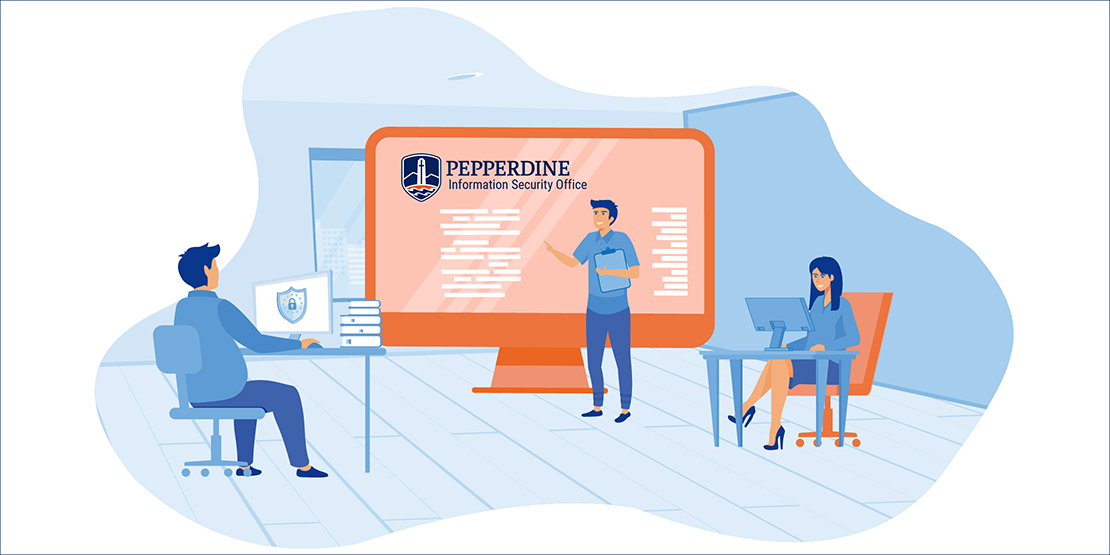
Conceptual illustration of a classroom atmosphere for an ISO training session.

Schedule an Information Security Training 

In addition to our University-wide training opportunities throughot the academic year, you can request a custom training directly from the Information Security Office. Just email iso@pepperdine.edu for information on training opportunities. 

Security Tips

Learn more about the vital aspects of defending against cyber attacks and how to keep your devices safe.

Cybersecurity

There are certain universal measures you can employ to ensure that you're working securely in the digital universe:

Remote Work

Working remotely means working securely. Here are some tips to keep you safe, wherever you plug in.

Data Classifications

A vital component of understanding information security relies on how we handle data. At Pepperdine University, data is classified into three categories: Public, Confidential, and RESTRICTED (see Information Classification and Protection Policy Schedules):


Public Information

This is information is allowed anywhere with no specific protections Examples: Email addresses, Campus Wide IDs, Course Catalog, Event notices.


Confidential Information

This information is permitted where protected by a Password Examples: Email messages, Business records, Educational records.


RESTRICTED Information

This information is ONLY permitted using University-approved encryption. Examples: Social security numbers, Credit card numbers, Health records.


Mobile Device Secure Computing

Your mobile is a fantastic tool for life and work, but it is extremely vulnerable to loss. Learn how to protect your device by adhering to these security priorities:

  Update Systems and Apps

Regardless of whether your mobile has anti-virus, updates are still the best strategy for keeping
malware off your device. Updates stop attacks that anti-virus cannot stop.

  • Update your mobile operating system when the manufacturer issues an update. More often
than not, these updates patch security holes.
  • Update your apps when security updates become available.
  • Don’t dismiss or put off security updates!
  Password Protection

Anyone picking up your lost device has access to your email and information. A PIN is required by
policy for persons who have programmed their device to access confidential University information,
such as work email.

  • Set a complex pin, or better, a small pass phrase.
  • Set your device to lock after, at most, 15 minutes inactivity.
  • Set your device to wipe after 10 bad passwords.
  Maintain Device Awareness

It seems like common sense, but its good to consciously note that these mobile devices are just as mobile for thieves and ‘finders keepers’ as for you! Keep your device on your person, in the bag you are carrying or in sight at all times. Turning your back, or walking away inadvertently – even in a trusted environment like school or work – may result in the device being taken by someone else.

iOS and now Android devices have a ‘find my device’ feature. Read your operating system information and set it up in case you lose your device. You may be able to recover the device or at least wipe your data! It’s also good to have it set up, in case you lose it!

  Routine Backups

Sync or back up your device regularly to avoid losing data or software with a lost device. This also gives you confidence to use the wipe feature mentioned above if you are not sure if your device is stolen or just mislaid.

  Mobile Device Setup for Pepperdine Email

Pepperdine Information Technology recommends using the native Gmail mobile app for accessing your Pepperdine email. Download it from the official App Store or Google Play and set it up with your @pepperdine.edu email. You’ll find that you can load your personal gmail accounts very easily alongside your Pepperdine Gmail account in this app and switch between accounts with just a couple taps.

  Customized Lock Screen

If you add a contact phone or email to the picture you use for your lock screen, then someone who finds your device can email or call to let you know it has been found!

Think – be wary, not trusting, on email!

Don’t get phished! It could end up filling your email box with trash, or cost you a paycheck or financial aid payment! Mobiles are especially helpful to criminal ‘typo’ addresses (like peppredine.com) due to the small screen.
Do this with all unexpected email requests (phishing.pepperdine.edu for more info):

  • Delete suspicious requests, confirm ‘real’ requests with sender by phone or web.
  • Check the web address (URL) every time you enter your password.